

Gmail Is Blocking My Emails: The Complete Diagnostic & Fix Guide
Seventy-five emails per day. Every single one bounced. A 550 5.7.1 rejection on every message - and Google Postmaster Tools showing a 0% spam rate. That was the reality for one sysadmin who posted the whole saga on r/sysadmin. Everything looked perfect on paper. Nothing was getting through.
If that panicked "gmail is blocking my emails" search brought you here, you're not alone. Gmail processes roughly 300 billion emails annually, and since the November 2025 enforcement shift, non-compliant messages don't quietly land in spam anymore. They get rejected at the server level. The bounce-back hits your inbox, your reputation takes the damage, and your recipients never see a thing.
Stop blaming Gmail. In most cases, your sending infrastructure deserves to be blocked - and the fix is almost always within your control.
What Changed in Gmail's Enforcement
Gmail's November 2025 enforcement phase was one of the biggest shifts in email deliverability in years. Before November, Gmail ran what it called an "educational phase" where non-compliance triggered warnings and increasing enforcement pressure. That's over now.
Gmail now hard-rejects non-compliant messages at the SMTP level. Your email doesn't land in spam. It doesn't land anywhere. The recipient's server refuses to accept it, and you get a bounce-back with a permanent 5xx error code. The difference matters enormously: spam-filtering is a soft signal you might never notice, but SMTP rejection is a wall.
One critical detail most articles miss: these rules apply to messages sent to personal Gmail accounts - @gmail.com and @googlemail.com specifically. If you're sending to a company that uses Google Workspace on a custom domain, different rules apply. But given Gmail's massive personal user base, that audience alone is large enough to wreck your deliverability metrics.
Blocked vs. Spam-Filtered
Before you troubleshoot, you need to know which problem you actually have. These are two completely different failure modes.
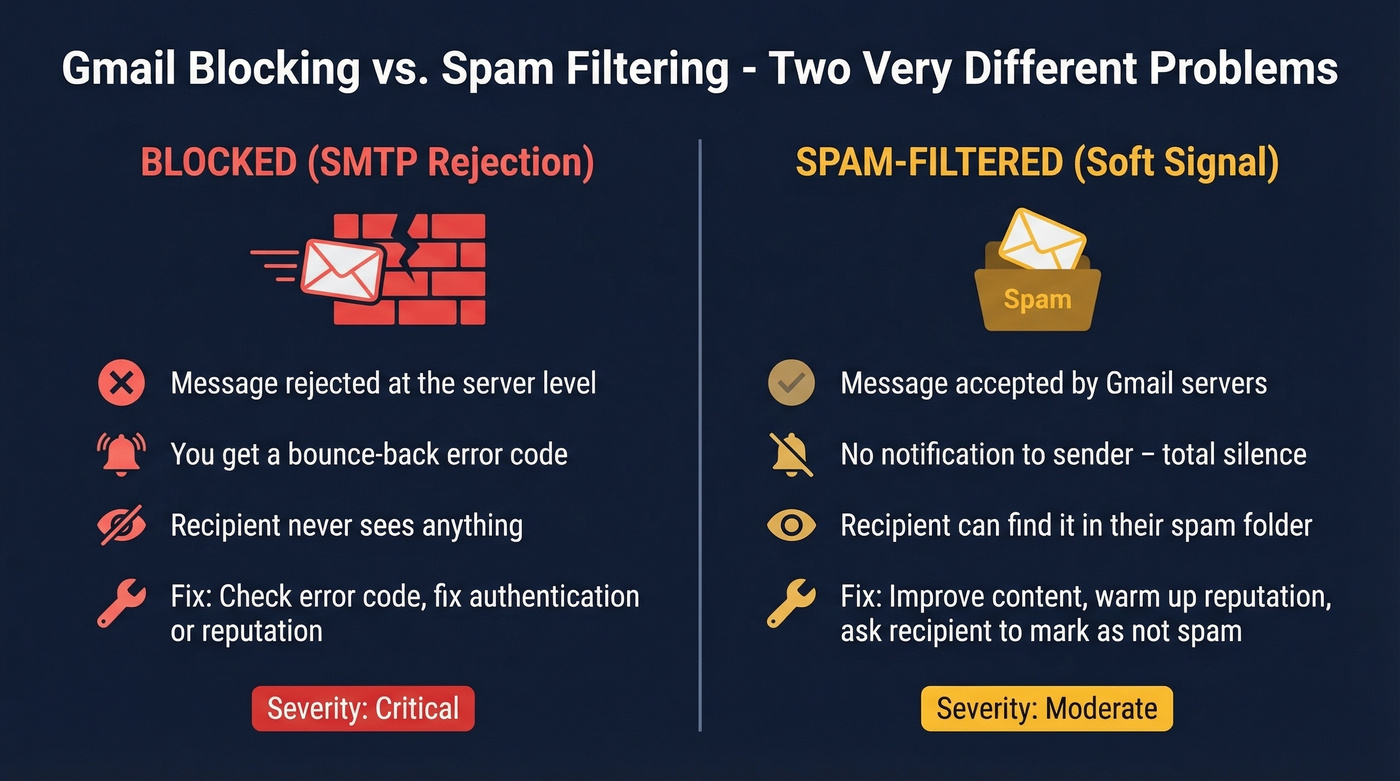
| Blocked | Spam-Filtered | |
|---|---|---|
| What happens | Gmail rejects at SMTP | Gmail accepts, routes to spam |
| Sender notification | Bounce-back with error code | None - silence |
| Recipient sees it? | No | Yes, in spam folder |
| How to diagnose | Check bounce logs | Ask recipient to check spam |
If you're getting bounce messages, you're blocked. If your recipient says "I never got it" but there's no bounce in your sent folder or server logs, the message is probably sitting in their spam folder. The fix path is different for each.
Gmail Error Code Reference
Every Gmail block comes with an SMTP error code. Cross-reference your bounce message here.
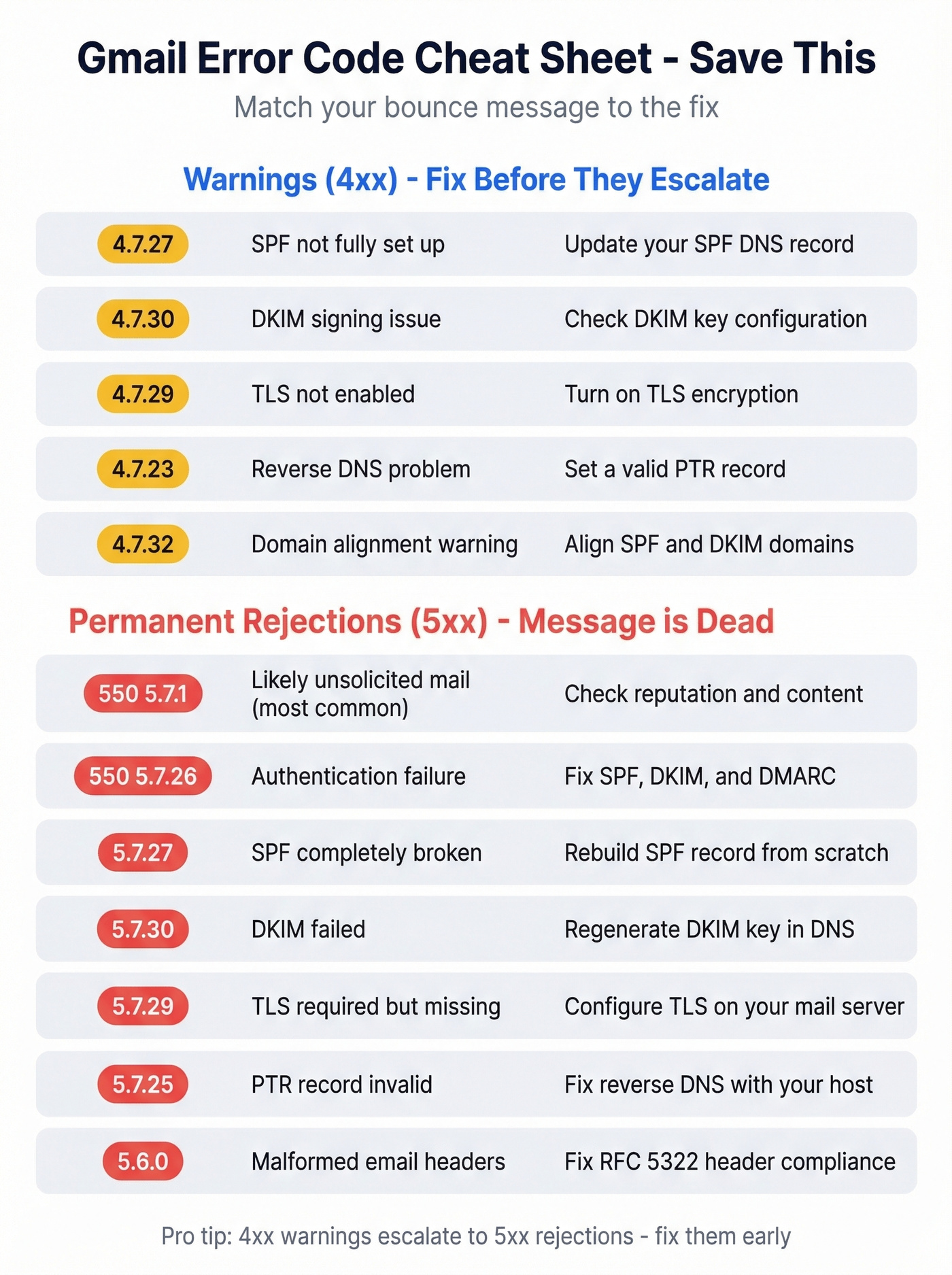
| Error Code | Type | Meaning | Fix |
|---|---|---|---|
| 550 5.7.1 | Permanent | Likely unsolicited mail | Check reputation + content |
| 550 5.7.26 | Permanent | Unauthenticated sender | Fix SPF/DKIM/DMARC |
| 4.7.27 | Temporary | SPF warning | Update SPF record |
| 5.7.27 | Permanent | SPF failure | SPF missing or broken |
| 4.7.30 | Temporary | DKIM warning | Check DKIM signing |
| 5.7.30 | Permanent | DKIM failure | Fix DKIM key in DNS |
| 4.7.29 | Temporary | TLS warning | Enable TLS |
| 5.7.29 | Permanent | TLS required | TLS not configured |
| 4.7.23 / 5.7.25 | Warning / Permanent | PTR/DNS issue | Set valid reverse DNS |
| 4.7.32 | Temporary | Alignment warning | Align SPF/DKIM domains |
| 5.6.0 | Permanent | RFC 5322 violation | Fix message headers |
The pattern is straightforward: 4xx codes are warnings where Gmail is telling you something's wrong but still accepting or deferring the message. 5xx codes are permanent rejections - the message is dead. If you're seeing 4xx codes, fix the issue before it escalates. Gmail gave everyone months of warnings during the educational phase. The grace period is gone.
The most common code in the wild is 550 5.7.1 - "likely unsolicited mail." It's a catch-all that can mean reputation problems, content issues, or volume spikes. The second most common is 550 5.7.26, which specifically flags authentication failure.

Bad data is the #1 hidden cause of Gmail blocking. Every bounce tanks your sender reputation - and most teams don't realize their list is the problem until they're staring at 550 5.7.1 errors. Prospeo's 5-step email verification delivers 98% accuracy with catch-all handling, spam-trap removal, and honeypot filtering. Teams like Snyk dropped bounce rates from 35-40% to under 5%.
Stop feeding Gmail bad addresses. Start with verified data.
Why Gmail Blocks Your Emails
Most blocking issues trace back to one of five cause clusters. Let's break them down.
Broken Authentication
This is the #1 cause of 550 5.7.26 rejections. Gmail checks three authentication protocols before accepting your message, and all three need to pass.
SPF tells Gmail which servers are authorized to send on behalf of your domain. The most common mistake is exceeding the 10 DNS lookup limit - every include: in your SPF record counts, and if you're using multiple SaaS tools (CRM, marketing platform, support desk), you can blow past 10 without realizing it. DKIM signs your messages cryptographically. Verify it's working by opening any sent email in Gmail, clicking "Show original," and checking for DKIM: PASS. If it says FAIL, your DNS key is wrong or your sending service isn't signing properly. DMARC ties SPF and DKIM together with an alignment policy. Start with p=none for monitoring, then move to p=quarantine, then p=reject as you confirm everything's clean.
Poor Sender Reputation
Gmail tracks two separate reputations: your IP address and your domain. You can have a clean IP on a shared sending service and still get blocked because your domain reputation is trashed.
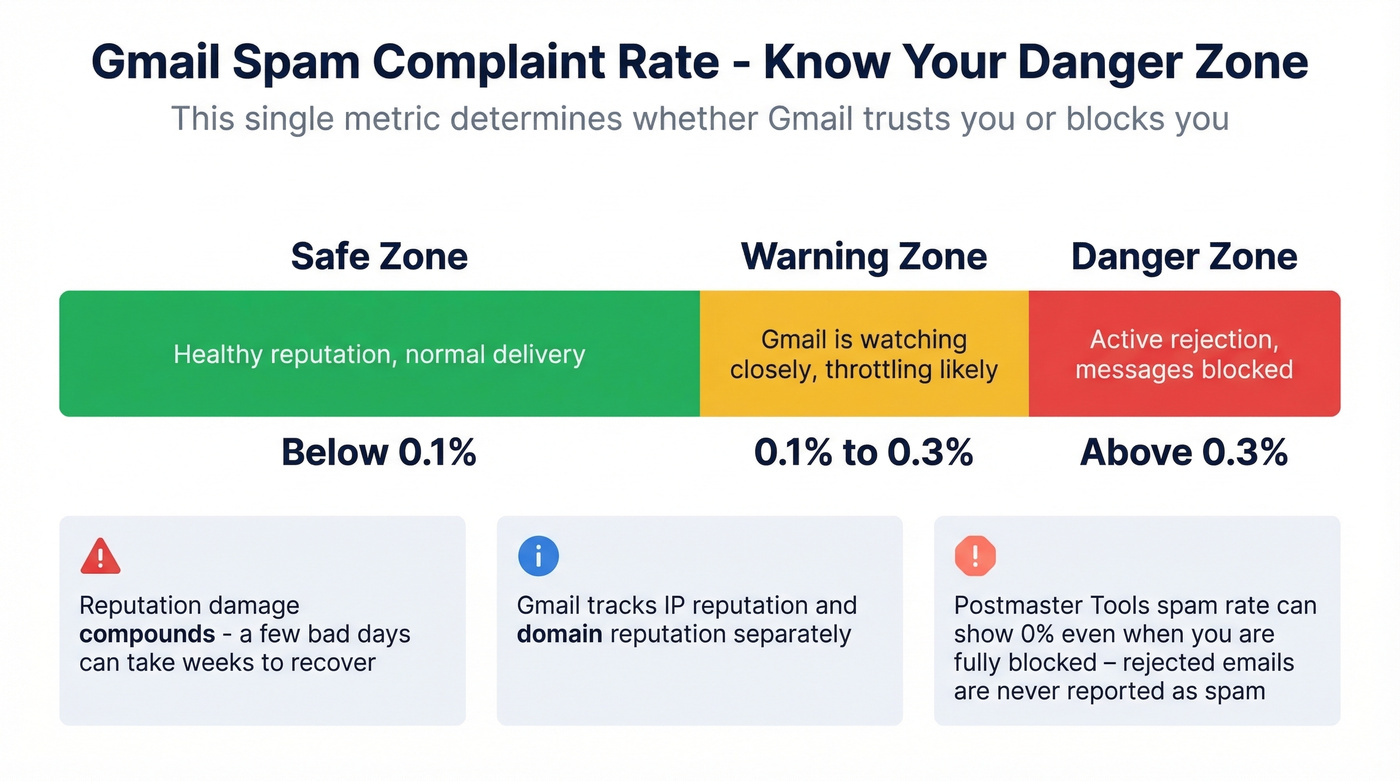
The critical threshold is spam complaint rate. Below 0.1% is healthy. Between 0.1% and 0.3% is the warning zone. Above 0.3% and you're in danger - Gmail starts rejecting. The frustrating part is that reputation damage compounds: a few bad days can take weeks to recover from.
If you need a structured plan, start with a dedicated sender reputation cleanup workflow.
Alias and Forwarding Pitfalls
Here's the thing: you can get blocked while "sending from Gmail." A community organizer on r/Gmail reported getting hit with 550 5.7.1 when sending to distribution lists of 50-80 people. They were using Gmail's "send mail as" feature with a custom domain alias. When they switched to sending from their native @gmail.com address, messages delivered fine.
The lesson: if you use a custom domain alias in Gmail, that domain's SPF, DKIM, and DMARC records must be properly configured. Gmail checks the alias domain's authentication, not just the Gmail infrastructure. Gmail's POP3 access changes have pushed more users toward forwarding and "send mail as" setups, which makes authentication alignment even more critical than it was a year ago.
If you're unsure what "alignment" actually means in practice, see DMARC alignment.
Bad Data and High Bounce Rates
Sending to invalid or outdated email addresses is the fastest path to getting blocked. Every bounce tells Gmail your list hygiene is poor, and high bounce rates destroy sender reputation faster than almost anything else.

In our experience, most teams that get hit with 550 5.7.1 have a list hygiene problem they don't know about. The pattern is always the same: a team buys or scrapes a list, blasts it without verification, bounces spike above 5%, and within days their domain is flagged. The damage takes weeks to undo. We've seen this cycle play out dozens of times - the fix is always upstream. Verify every address before it enters your sending pipeline.
If you want benchmarks and remediation steps, use this email bounce rate guide.
Content and Attachment Triggers
Gmail blocks executable files like .exe, .bat, and .cmd even when they're inside compressed archives like .zip or .tar. Gmail scans inside archives, so there's no workaround. The message size limit is 20MB total including attachments - anything larger bounces. For a full list of blocked file types, check Google's help page.
Sometimes the culprit isn't authentication at all. It's an attachment type that Gmail silently refuses.
For copy-related issues, run a quick email spam checker pass before you send.
How to Fix Gmail Blocking
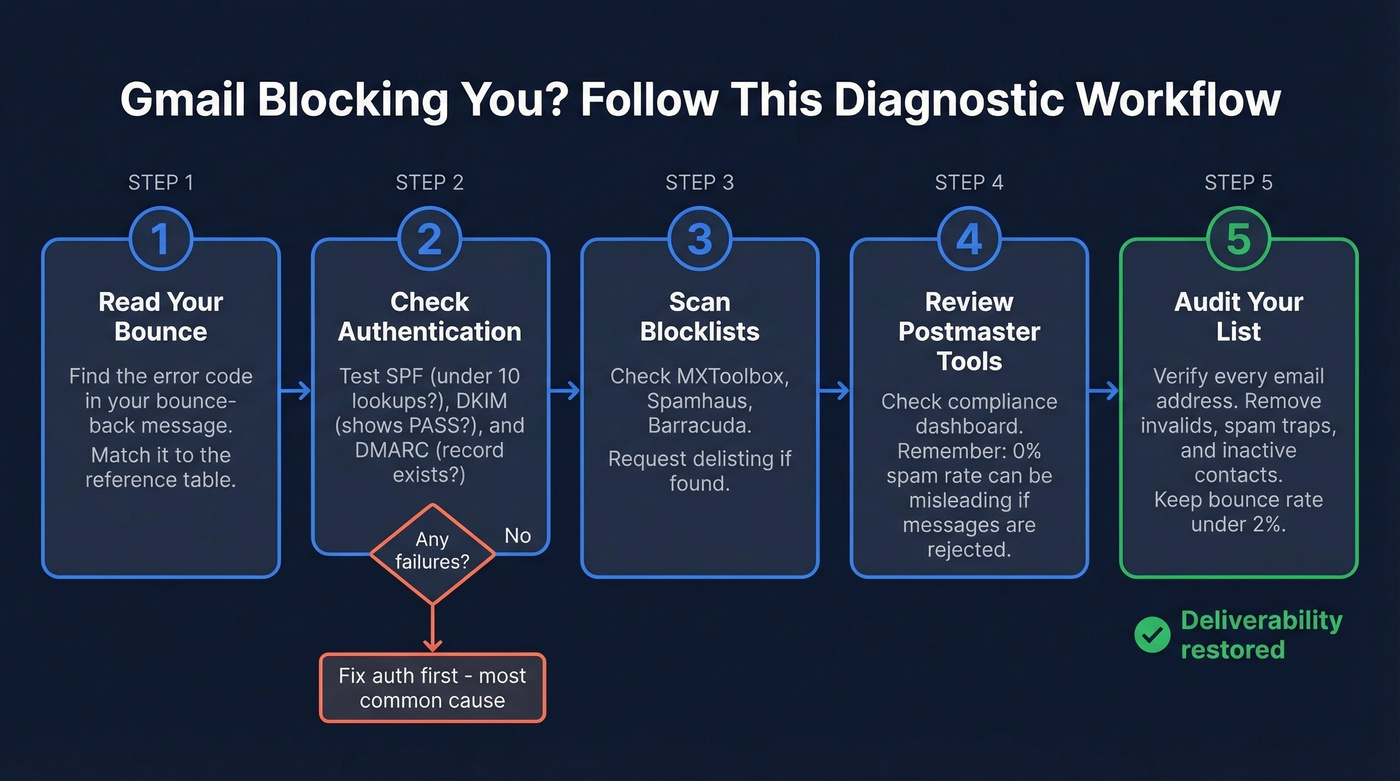
Here's the step-by-step diagnostic workflow. Work through these in order - each step narrows the problem.
Step 1 - Read Your Bounce Message
Every Gmail block includes an error code. Find the bounce notification - usually from Mail Delivery Subsystem or mailer-daemon - and match the code to the reference table above. If you're using a sending platform like Mailgun or SendGrid, check your dashboard's bounce logs for the exact SMTP response. The error code tells you exactly where to focus.
Step 2 - Check Authentication
Run these three checks:
- SPF: Use
dig TXT yourdomain.comor an online SPF checker. Confirm all your sending services are included and you're under 10 DNS lookups. (If you need patterns to compare against, use these SPF record examples.) - DKIM: Send a test email to a Gmail account, open it, click the three dots, then "Show original." Look for
DKIM: PASS. (More detail: how to verify DKIM is working.) - DMARC: Check your DNS for a
_dmarc.yourdomain.comTXT record. If it doesn't exist, create one starting withv=DMARC1; p=none; rua=mailto:dmarc-reports@yourdomain.com.
If any of these fail, you've found your problem. Fix authentication before investigating anything else - it's the most common cause and the most straightforward fix.
Step 3 - Check Blocklists
Your IP or domain might be on a blocklist without you knowing. Run checks on these free tools:
- MXToolbox - scans 100+ DNS-based blocklists
- DNSChecker - cross-references 50+ anti-spam lists
- MultiRBL - granular status across dozens of lists
- EmailListVerify - checks 100+ real-time blocklist servers
Pay special attention to Spamhaus and Barracuda - two of the most widely used lists. If you're listed, each blocklist has its own delisting process, usually a form plus a waiting period.
If you’re specifically dealing with Spamhaus, follow a dedicated Spamhaus blacklist removal process.
Step 4 - Review Google Postmaster Tools
Set up Postmaster Tools if you haven't already: add your domain, verify ownership via DNS TXT record, and wait for data to populate. You'll need to be sending roughly 1,000+ messages per day to Gmail for the dashboards to show anything useful.
As of late 2025, Google shifted Postmaster Tools to v2. The focus now is a binary compliance dashboard covering SPF/DKIM, DMARC alignment, PTR records, TLS, and one-click unsubscribe - just Pass or Fail.
Here's what most people miss: Google Postmaster Tools is essential but misleading. The spam rate only counts emails that recipients manually report as spam. If Gmail rejects your messages at the SMTP level, they never reach an inbox to be reported - so your spam rate shows 0% while your inbox delivery can also be 0%. That sysadmin from the intro? Perfect Postmaster stats. Zero delivery. Don't let a green dashboard lull you into thinking everything's fine.
For a broader framework, keep an email deliverability checklist alongside Postmaster.
Step 5 - Audit Your Sending List
If your bounce rate is above 2%, you have a data quality problem. Period.
Every bounced email is a signal to Gmail that you're not maintaining your list, and that signal compounds with every send. Verify every address before it enters a sequence. Tools like Prospeo run a 5-step verification process with catch-all handling, spam-trap removal, and honeypot filtering - the kind of upstream check that prevents the problem instead of treating the symptoms.
If you’re building lists from scratch, use a how to generate an email list workflow that bakes in verification.
Step 6 - Warm Up or Ramp Down
If you're sending from a new domain or recovering from a reputation hit, you can't just flip the volume back on. Start at 20-30 emails per day and increase by 10-20% weekly. Warmup needs to be continuous, with real engagement signals like opens, replies, and conversations. Dedicated warmup tools automate this with peer-to-peer email exchanges - Instantly runs ~$37/mo and Lemwarm ~$29/mo, while WarmySender starts at $4.99/mo for tighter budgets.
If you’re trying to set safe sending speeds, map your ramp to email velocity guidelines.
Step 7 - Contact Google
If you've fixed everything and you're still blocked, submit a request through Google's Sender Contact Form. Set realistic expectations: responses are slow, there are no guarantees, and Google won't tell you exactly what triggered the block. This is a last resort, not a first step.
Reputation recovery often lags behind infrastructure changes by several weeks, which is why messages keep bouncing even after you've corrected the underlying issue. Be patient. Keep sending clean, low-volume mail while you wait.
Cold Email Senders: Extra Rules
Gmail blocking your cold emails isn't a bug - it's working as intended. The November 2025 enforcement shift means non-compliant cold emails now bounce instead of quietly landing in spam. That's a fundamentally different problem because bounces actively damage your domain reputation, creating a downward spiral.
Look, if your bounce rate is above 3%, your data provider is the problem, not Gmail. Most teams blame infrastructure when the real issue is they're sending to garbage addresses. Fix the data and half your deliverability problems disappear overnight.
For cold outreach in 2026, warm up every new domain with a structured 2-4 week ramp. Authentication must be perfect: SPF, DKIM, DMARC, valid PTR records, TLS - no exceptions. And data quality is the foundation everything else sits on. Sending to purchased or scraped unverified lists is the #1 domain killer. We've watched teams burn through three domains in a month before they figured this out.
If you’re running outbound sequences, align this with a B2B cold email sequence playbook.
The consensus on r/smallbusiness is that the rules have permanently changed. Adapt your infrastructure or watch your deliverability crater.
Prevention Checklist
Keep this somewhere your ops team can reference weekly:
- SPF, DKIM, and DMARC configured and passing on all sending domains
- Spam complaint rate below 0.1% (not just below 0.3%)
- One-click unsubscribe header (RFC 8058) on all marketing emails
- Unsubscribe requests processed within 48 hours
- TLS enabled on all mail servers
- Valid PTR (reverse DNS) records for sending IPs
- Bounce rate below 2% on every campaign
- Every email address verified before first send
- Postmaster Tools reviewed weekly
- No volume spikes without a warmup ramp
Skip the checklist at your own risk. We've seen teams treat this as optional and end up rebuilding their entire sending infrastructure from scratch - new domains, new IPs, weeks of warmup - because they let a preventable problem snowball.
Gmail's enforcement shift means one thing: list hygiene is no longer optional. Prospeo refreshes all 300M+ profiles every 7 days - not the 6-week industry average - so you're never sending to stale addresses. At $0.01 per email, fixing your deliverability costs less than a single blocked campaign.
Outdated contacts destroy domain reputation. Weekly-refreshed data prevents it.
FAQ
How do I tell if Gmail is blocking or spam-filtering?
Check for a bounce-back message with an SMTP error code like 550 5.7.1 - that means Gmail rejected your email at the server level. No bounce but the recipient finds it in spam? That's filtering, not blocking. Look in your bounce logs or Mail Delivery Subsystem messages to confirm which failure mode you're dealing with.
Why do Postmaster Tools show 0% spam when nothing delivers?
Postmaster Tools only counts emails recipients manually report as spam. Messages rejected at the SMTP level never reach an inbox, so they can't be reported - your spam rate reads 0% while delivery is also 0%. Always cross-reference Postmaster data with your bounce logs for the full picture.
Can Gmail block emails sent from another Gmail address?
Native @gmail.com-to-@gmail.com messages are rarely blocked. But if you use Gmail's "send mail as" feature with a custom domain alias, Gmail checks that alias domain's SPF, DKIM, and DMARC records. Failed authentication on the alias domain triggers blocks even though you're sending through Gmail's own servers.
How long does reputation recovery take?
Authentication fixes like SPF, DKIM, and DMARC propagate within 24-48 hours via DNS. Domain reputation recovery takes 2-4 weeks of clean, low-volume sending. Postmaster Tools dashboards update daily but need roughly 1,000 daily messages to Gmail before metrics become useful.
What's the fastest way to stop Gmail from blocking sales emails?
Verify every email address before sending - bad data is the #1 domain killer. Set up SPF, DKIM, and DMARC, warm up new domains over 2-4 weeks, and keep bounce rates below 2%. If you're not sure where to start, fix authentication first, then clean your list, then worry about content and volume.