

Why Google Is Blocking Your Emails (And How to Fix It)
You send an email. It bounces. The message from mailer-daemon@googlemail.com promises "technical details below" - but there's nothing below except a link to a Google help page that sends you in circles.
This is the reality for a growing number of senders in 2026. Gmail's enforcement has gotten dramatically stricter, and the error messages haven't gotten any clearer. Whether you're running outbound campaigns, sending transactional emails from a custom domain, or just trying to use a "Send as" alias you've had for years, Gmail's blocking logic can feel like a black box. Let's crack it open.
Gmail's 2026 Enforcement Reality
Gmail didn't flip a switch overnight, but November 2025 was the inflection point. Google shifted from quietly routing non-compliant messages to spam folders to outright rejecting them at the protocol level. That's a massive difference - spam-folder placement meant your emails still technically arrived, while protocol-level rejection means they bounce hard.
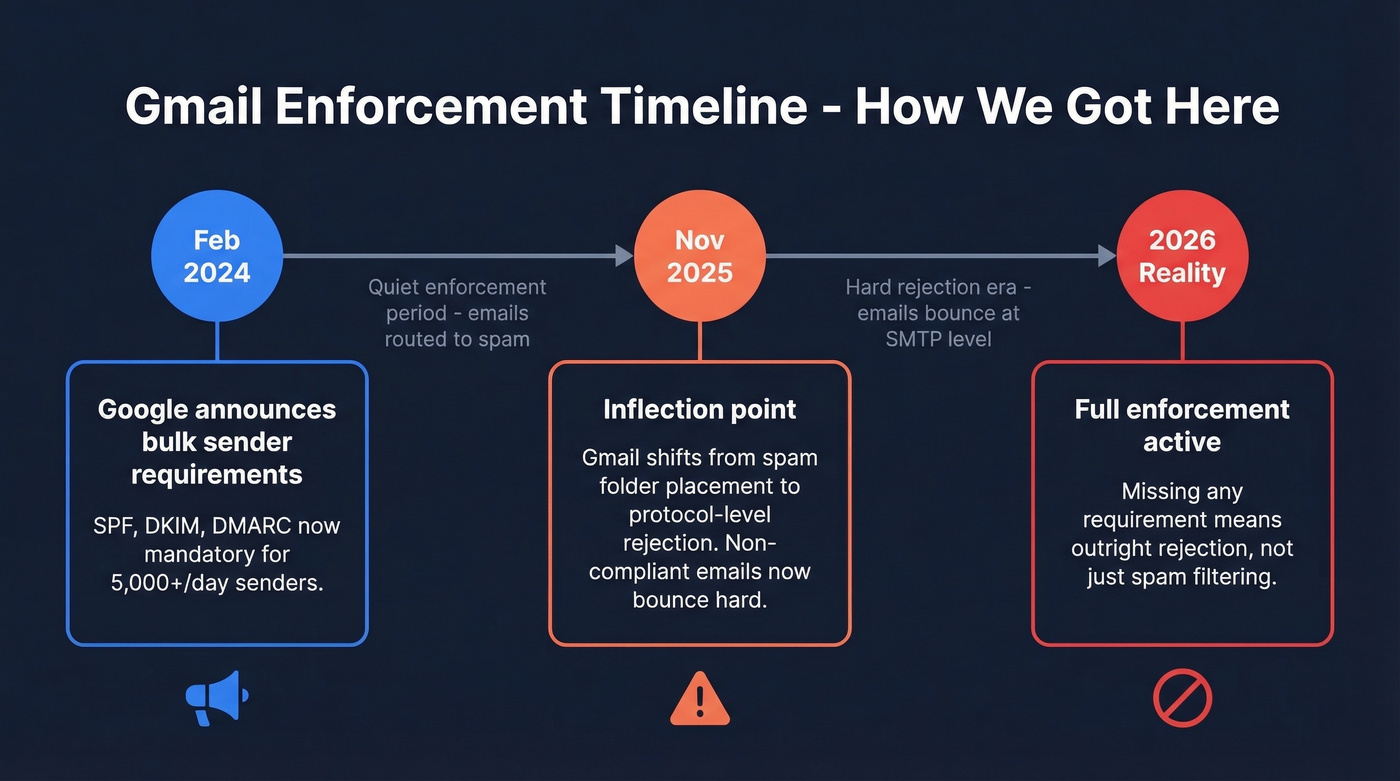
Postmaster Tools now puts a lot more weight on Compliance Status (Pass/Fail) as a quick way to see whether you meet the bulk-sender requirements. Here's the detail that catches people off guard: once you've sent 5,000+ messages in a day to personal Gmail accounts, you're classified as a bulk sender. That classification is permanent. Even if you never hit that volume again, the stricter rules apply to you forever.
Bulk Sender Requirements
All senders must:
- Implement SPF, DKIM, and DMARC records
- Keep spam complaint rates below 0.3% (target under 0.1%)
5,000+/day senders must also:
- Align SPF or DKIM domains with the visible From address
- Set DMARC to at least
p=none(thoughp=rejectis the goal) - Support one-click unsubscribe per RFC 8058 for promotional mail
- Honor unsubscribe requests within 2 business days
- Include a visible unsubscribe link in the message body
Miss any of these, and Gmail won't just bury your emails. It'll bounce them.
Gmail Error Codes Decoded
When Gmail blocks your email, the SMTP response code tells you exactly what went wrong - if you know how to read it. The key distinction: 4xx codes are temporary (Gmail is warning you; fix the issue and retry), while 5xx codes are permanent (Gmail is rejecting outright; you must fix the root cause before sending again).
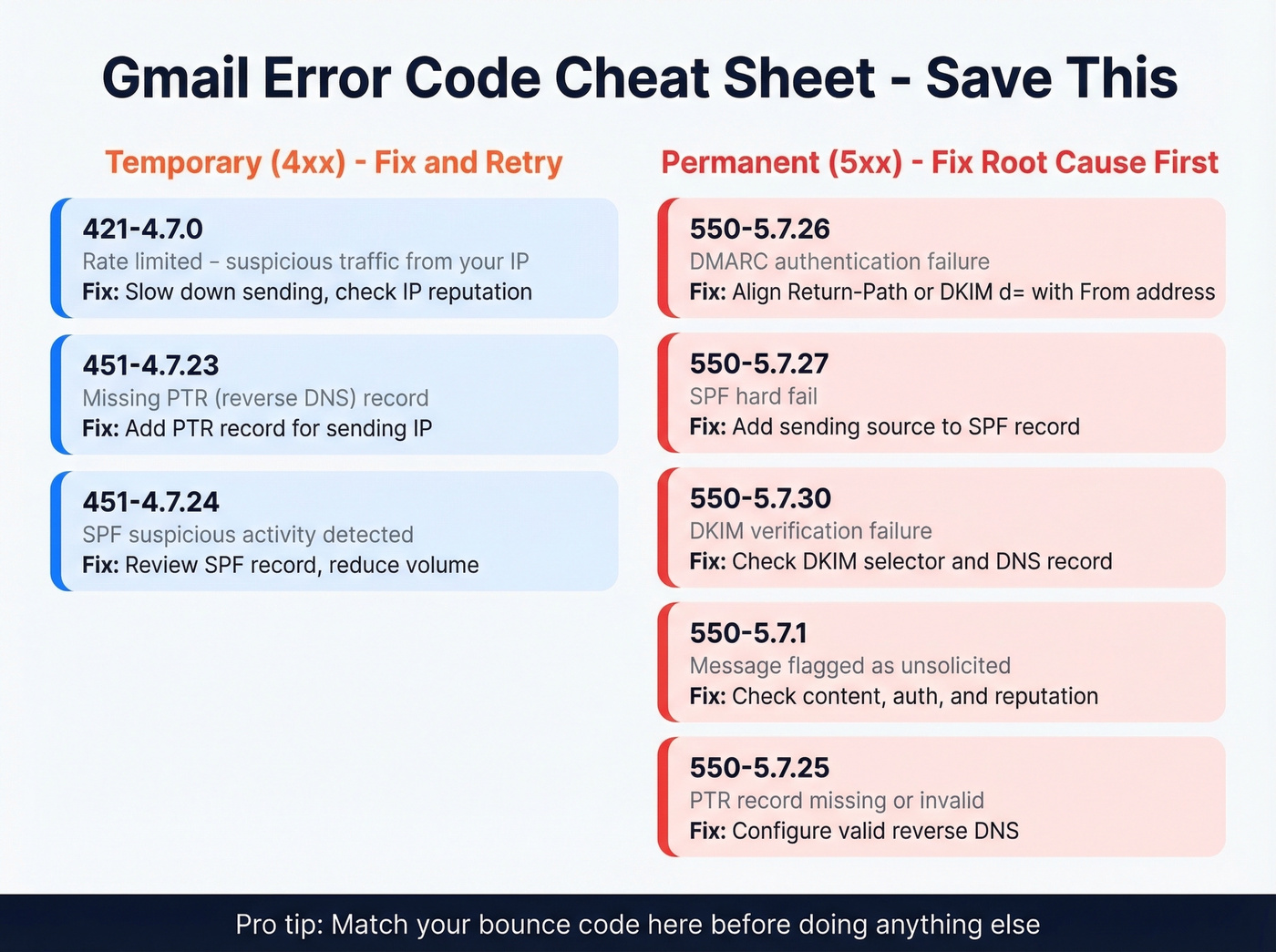
| SMTP Code | What It Means | Temp/Perm? | What to Do |
|---|---|---|---|
| 421-4.7.0 | Rate limited due to unsolicited/suspicious traffic from your IP | Temporary | Slow down sending, check IP reputation |
| 451-4.7.23 | Missing PTR (reverse DNS) record | Temporary | Add PTR record for sending IP |
| 451-4.7.24 | SPF suspicious activity detected | Temporary | Review SPF record, reduce volume |
| 550-5.7.1 | Message flagged as unsolicited | Permanent | Check content, authentication, reputation |
| 550-5.7.26 | DMARC authentication failure | Permanent | Fix DMARC alignment (see below) |
| 550-5.7.27 | SPF hard fail | Permanent | Add sending source to SPF record |
| 550-5.7.30 | DKIM verification failure | Permanent | Fix DKIM selector and DNS record |
| 550-5.7.29 | TLS required but not supported | Permanent | Enable TLS on sending server |
| 550-5.7.25 | PTR record missing or invalid | Permanent | Configure valid reverse DNS |
| 550-5.6.0 | RFC 5322 formatting violation | Permanent | Fix message headers/formatting |
Save this table. When you get a bounce, match the code here first - it'll save you hours of guessing.
Why Gmail Blocks Emails (And the Fix for Each)
Authentication Failures
This is the most common cause and the easiest to fix. If you haven't set up SPF, DKIM, and DMARC records for your sending domain, Gmail will reject your messages. Full stop. This isn't optional anymore - every sender needs all three, and they need to be correct, not just present.
Fix: Add an SPF record listing all your sending sources, configure DKIM signing with your ESP, and publish a DMARC record. Start with p=none if you're nervous, but move to p=reject as soon as you've confirmed alignment. (If you need a quick reference, see SPF record syntax and common provider includes.)
DMARC Alignment Failures
Here's the thing - you can have SPF and DKIM records that technically "pass" and still get rejected. A Reddit user with a Squarespace domain learned this the hard way: their SPF record included Mailgun but not Google, and their DMARC was set to p=reject. When they sent via Gmail's "Send as" feature, the Return-Path domain didn't align with the From address. Result: 550-5.7.26 Unauthenticated email from [domain] is not accepted due to domain's DMARC policy.
Fix: Ensure your Return-Path domain or DKIM d= domain aligns with the visible From address. If you're using multiple sending services, each one needs to be included in your SPF record and configured for DKIM signing under your domain. (More detail: DMARC alignment and Return-Path setup.)
Blacklisted IP or Domain
Your sending IP or domain might be on a blacklist you don't know about. MXToolbox checks your IP against 105 DNS-based blacklists in seconds. If you're on even one major list, Gmail will throttle or reject your messages.
Fix: Run your sending IP through MXToolbox. If you're listed, follow the delisting process for each blacklist - most have automated request forms. If you're on a shared IP (common with budget ESPs), consider moving to a dedicated IP. (If you’re dealing with a major list, this Spamhaus blacklist removal guide can help.)
High Spam Complaint Rate
Gmail's threshold is clear: keep complaints below 0.1%, and never exceed 0.3%. That 0.3% number isn't a target - it's a hard cap. Cross it, and Gmail starts rejecting at the protocol level. We've seen teams with perfectly clean authentication get blocked purely because their targeting was sloppy and recipients hit "Report spam."
Fix: Monitor your spam rate in Google Postmaster Tools. Improve your targeting - stop emailing people who haven't engaged in 90+ days. Make unsubscribe dead simple. (If you’re trying to rebuild trust, use a structured plan to improve sender reputation.)
High Bounce Rate from Bad Data
This is the silent killer, and it's the one we see destroy sender reputations faster than anything else. Invalid email addresses generate hard bounces, hard bounces tell Gmail your list hygiene is terrible, and Gmail interprets terrible list hygiene as a spam signal. The cascade is predictable: bad data, bounces, reputation damage, blocking.
Verify your contact list before every send. Prospeo's 5-step email verification catches invalid addresses, spam traps, and honeypots - the exact data problems that generate the bounces Gmail penalizes.

Fix: Never send to an unverified list. Run every list through email verification before it touches your sequencer. A 2% bounce rate is manageable. A 10% bounce rate will get you blocked fast. (Benchmarks and remediation: email bounce rate and spam trap removal.)
Content Triggers
Gmail's spam filters use machine learning that blocks 99.9% of spam and phishing. Your legitimate email can get caught in that net if it looks like spam - image-heavy emails with minimal text, URL shorteners (bit.ly links are a red flag), missing subject lines, and prohibited attachment types all trigger content-based filtering.
Fix: Maintain a healthy text-to-image ratio. Avoid URL shorteners entirely and use full URLs. Test your emails with aboutmy.email before sending to a real list. If you're sending HTML emails, make sure the plain-text version is substantive, not empty. (For copy and structure, see email copywriting.)
Sending Volume Spikes
Jumping from 500 emails a day to 5,000 overnight is the fastest way to trigger 421-4.7.0 rate limiting. Gmail interprets sudden volume increases as a spam signal, regardless of your authentication or content quality.
Fix: Warm up gradually. Increase volume by 20-30% per day, not 10x overnight. Spread sends across time windows rather than blasting everything at once. (Related: safe email velocity and the bulk email threshold definitions that trip teams up.)

High bounce rates are the fastest way to get Gmail to block you. Prospeo's 5-step verification eliminates invalid addresses, spam traps, and honeypots before they ever hit your sequencer - delivering 98% email accuracy at $0.01 per lead.
Stop feeding Gmail reasons to reject you. Send only to verified contacts.
Gmail vs Google Workspace Blocking
Not all Gmail rejection is the same. Consumer Gmail and Google Workspace block emails for fundamentally different reasons, and the fix paths diverge.
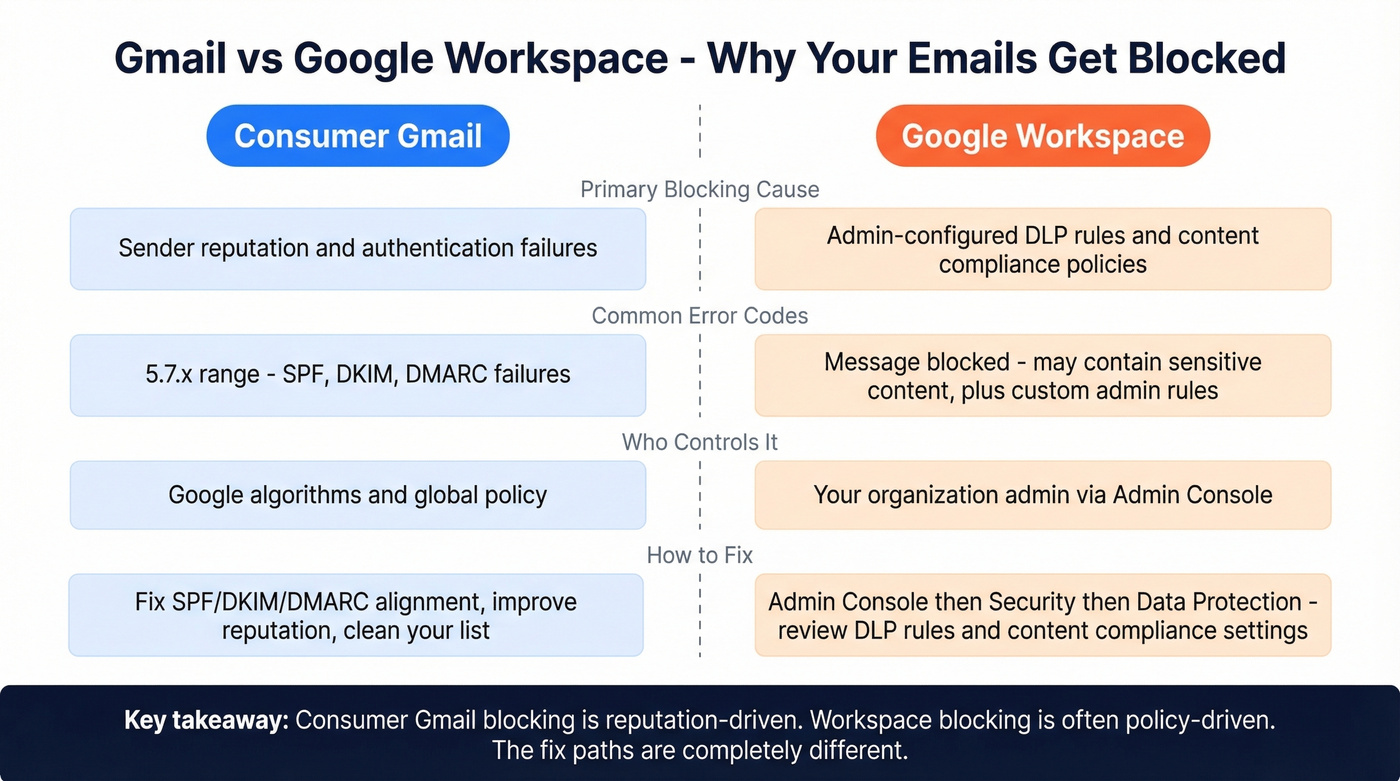
Consumer Gmail
Consumer Gmail blocking is reputation-driven and authentication-driven. The error codes live in the 5.7.x range, and the fixes are all about SPF/DKIM/DMARC alignment, sender reputation, and list hygiene. Everything in the error code table above applies here.
Google Workspace
Workspace blocking can come from admin-configured policies you didn't even know existed. One Workspace admin on Reddit reported outbound messages bouncing with "Message blocked - may contain sensitive content (like credit card numbers)" after migrating to a branded domain. They hadn't configured any DLP rules, but default policies were catching content patterns.
Fix: Admin Console > Security > Data Protection. Review active DLP rules and content compliance settings. The blocking is org-level, not Google-level.
"Send As" Alias Blocking
Look, if you're using Gmail's "Send as" feature with a custom domain, Gmail still requires the From-domain to pass authentication. Sending from the Gmail UI doesn't exempt you. A Reddit user discovered this when their long-standing alias suddenly started triggering 550-5.7.1 blocks - sending as their base @gmail.com address worked fine, but the alias failed because the custom domain's authentication wasn't aligned.
Why Auth "Passes" But Emails Still Bounce
This is the most frustrating scenario. You've set up SPF, DKIM, and DMARC. Your records exist. Tools show "pass." Gmail still rejects. We see five patterns come up again and again:
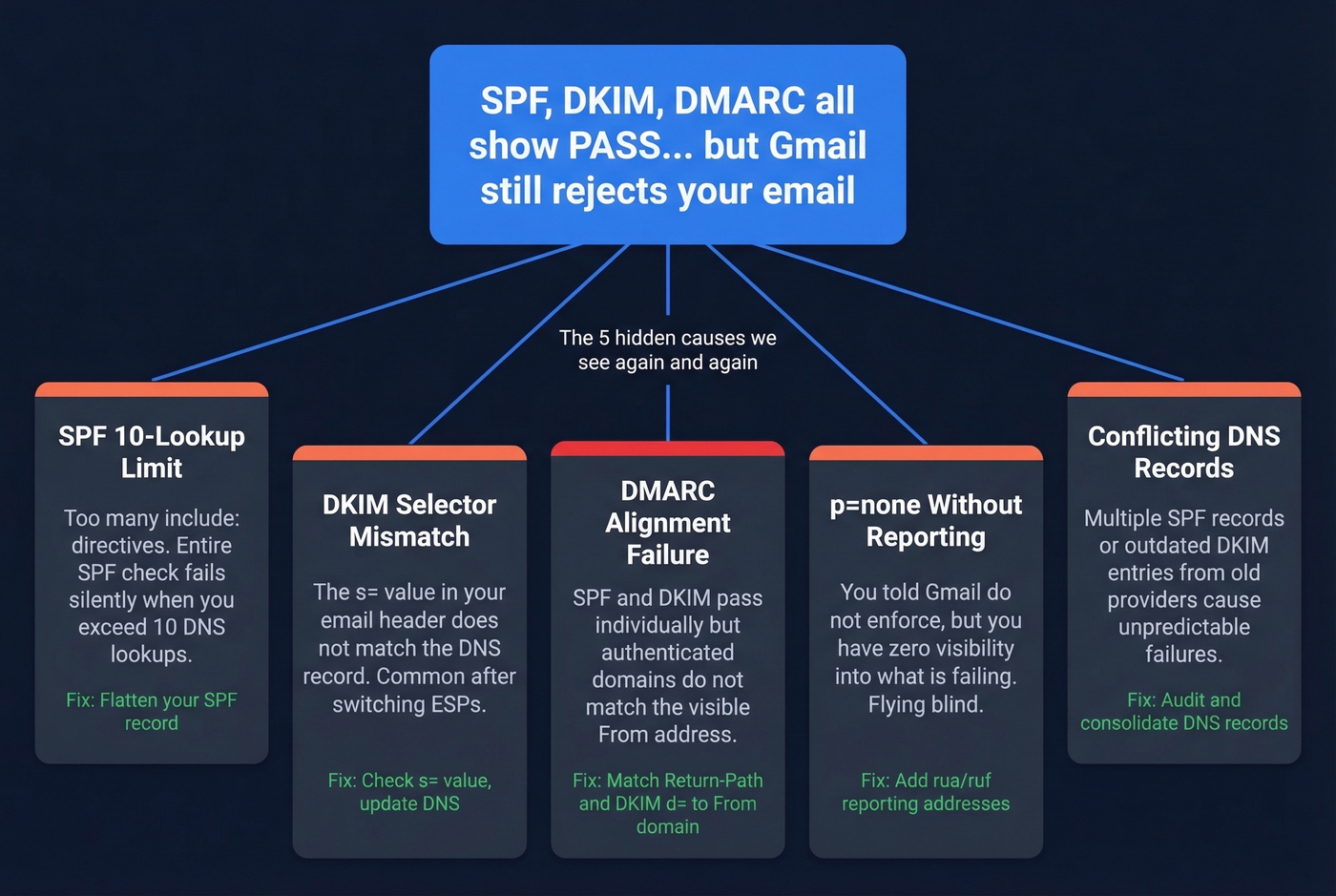
SPF 10-lookup limit exceeded. SPF allows a maximum of 10 DNS lookups. Every include: directive counts. If you're using multiple sending services - Google, Mailchimp, Salesforce, your CRM - you can easily blow past 10. When you do, the entire SPF check fails, not just the extra entries. Flatten your SPF record or consolidate sending sources.
DKIM selector mismatch. Your DKIM record exists, but the selector in the email header (s= value) doesn't match the DNS record. This happens when you rotate selectors or switch ESPs without updating DNS. Check the s= value in your email headers and verify the corresponding selector._domainkey.yourdomain.com record exists. (Step-by-step: how to verify DKIM is working.)
DMARC set to p=none without reporting. A p=none policy without rua/ruf reporting addresses means you're telling Gmail "don't enforce" while getting zero visibility into failures. You're flying blind. Add reporting addresses and start moving toward p=quarantine or p=reject.
DMARC alignment failure despite passing checks. SPF and DKIM can individually pass but fail DMARC alignment if the authenticated domains don't match the visible From address. The Squarespace domain example from earlier is a textbook case - SPF passed for Mailgun, but the From address was the custom domain. Configure custom Return-Path and DKIM d= to match your From domain.
Conflicting or duplicate DNS records. Multiple SPF TXT records for the same domain will cause failures. Stale records from old ESPs create conflicts, and DNS propagation takes 24-48 hours, so changes aren't instant. Audit your DNS for duplicates, remove stale records, and wait for full propagation before testing.
How to Diagnose the Problem
Nearly 70% of email senders don't use monitoring tools like Google Postmaster Tools. That means most senders don't know they have a problem until emails start bouncing. Don't be in that 70%.
Google Postmaster Tools
Go to postmaster.google.com, add your domain, and verify via TXT record (CNAME works too). Verification takes 24-48 hours. Once active, you'll see dashboards for compliance status, spam rate, IP reputation, domain reputation, authentication results, encryption, and delivery errors.
The caveats matter: dashboards update within roughly 24 hours, but sometimes lag longer. Low-volume days (under 100-200 emails) show no data at all. After fixing an issue, the Compliance Status dashboard can take up to 7 days to reflect the change. Don't panic if it doesn't update immediately.
MXToolbox
MXToolbox is your Swiss Army knife for DNS diagnostics. Run an MX lookup against authoritative nameservers (changes show up instantly), check your sending IP against 105 blacklists, verify reverse DNS, and test for open relay vulnerabilities. Start here when you get a blacklist-related bounce code.
aboutmy.email
The simplest diagnostic tool available. Go to aboutmy.email, keep the page open, and send an email to the generated address. You'll get an instant report on authentication, message structure, and best-practice compliance. It's built by Word to the Wise and takes about 30 seconds. Use it before every campaign launch.
Your Action Plan
Right now:
- Match your bounce code against the error code table above
- Identify whether it's a 4xx (temporary - slow down and fix) or 5xx (permanent - fix before retrying)
This week:
- Authenticate properly: SPF + DKIM + DMARC, all aligned with your From domain
- Check blacklists via MXToolbox - request delisting if flagged
- Send a test email through aboutmy.email to verify everything passes
- Audit DNS for duplicate SPF records, stale entries, and lookup count
Every campaign:
- Monitor Postmaster Tools weekly - watch spam rate, reputation, and compliance status
- Keep spam complaint rate below 0.1% (never exceed 0.3%)
- Verify your list before every send to catch invalid addresses, spam traps, and honeypots before they become the bounces that tank your reputation
Bad data doesn't just bounce - it cascades into reputation damage, protocol-level rejection, and blocked campaigns. Prospeo refreshes 300M+ profiles every 7 days, so you're never sending to stale addresses that trigger Gmail's hard-bounce penalties.
One bad list can wreck months of domain warming. Don't risk it.
FAQ
Can Gmail block emails without notifying the sender?
Yes. Gmail can silently route messages to spam without generating a bounce notification - you'll just see declining open rates over weeks. This makes silent spam placement harder to detect than outright rejection. Monitor Google Postmaster Tools weekly to catch reputation drops before they escalate.
How long does Gmail block recovery take?
Temporary blocks (4xx codes) typically lift within hours once you reduce volume or fix the trigger. Permanent blocks (5xx codes) require fixing the root cause first - authentication, blacklisting, or complaint rates. After the fix, expect 1-2 weeks of consistent, clean sending at moderate volume before reputation fully recovers.
Why are emails still blocked after fixing authentication?
Authentication is only one factor. If SPF, DKIM, and DMARC all pass but Gmail still rejects, the issue is almost always reputation - high spam complaints, poor list hygiene, or a blacklisted IP. Check Postmaster Tools for spam rate, run your IP through MXToolbox, and verify your contact list to eliminate hard bounces.
How do I prevent Gmail from blocking me again?
Authenticate properly with SPF + DKIM + DMARC aligned, keep spam complaints under 0.1%, and verify your contact list before every campaign. Combine that with weekly Postmaster Tools monitoring to catch problems early, and you'll stay well clear of Gmail's enforcement triggers.