

How to Set Up and Use Outreach Templates in Gmail (Without Burning Your Domain)
You built five outreach templates in Gmail, loaded them up, and fired off 50 emails before lunch. By 3 PM, 18 had bounced, your open rate was in single digits, and Google quietly started routing your messages to spam. The templates weren't the problem - everything around them was.
What follows: enabling Gmail templates, writing copy that actually gets replies, staying inside Gmail's sending limits, and the one pre-send step that most guides skip entirely.
Cold Email Benchmarks Worth Knowing
Before you write a single template, calibrate your expectations. Instantly's 2026 benchmark report analyzed billions of cold email interactions:
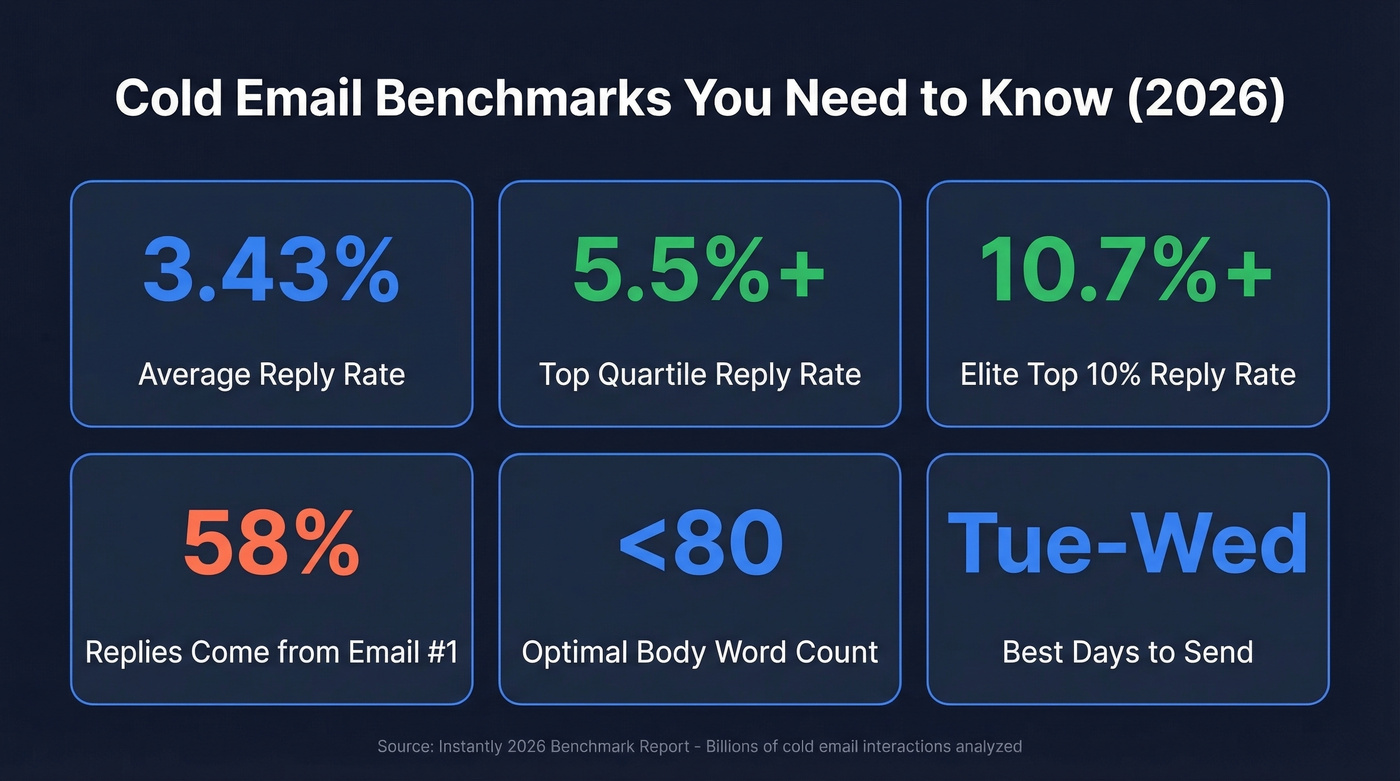
| Metric | Number |
|---|---|
| Avg reply rate | 3.43% |
| Top quartile | 5.5%+ |
| Elite (top 10%) | 10.7%+ |
| Replies from email #1 | 58% |
| Optimal body length | <80 words |
| Best send days | Tue-Wed |
A 3.43% average reply rate sounds low until you realize most cold email is terrible. The gap between average and elite is entirely execution - better targeting, cleaner copy, verified data. Whether you're a BDR crafting your first sample email or a seasoned sales rep iterating on sequences, that gap is closable with the right process.
How to Enable Gmail Templates
Gmail's built-in template feature is free and takes about two minutes to set up. It's basic, but it works for low-volume outreach.
Enabling Templates
- Open Gmail and click the gear icon, then See all settings.
- Navigate to the Advanced tab.
- Find Templates and select Enable.
- Click Save Changes at the bottom. Gmail reloads.
Creating and Saving a Template
- Click Compose and write your email (or paste one from the templates below).
- Click the three-dot menu at the bottom of the compose window.
- Go to Templates, then Save draft as template, then Save as new template.
- Name it something descriptive - "Cold Intro - SaaS VP" beats "Template 1."
Inserting, Overwriting, and Deleting
To use a saved template, open a new compose window, click the three-dot menu, hover over Templates, and select the one you want. It drops the content into your draft instantly.
To update an existing template, make your edits in a compose window, then go to Templates, then Save draft as template, then Overwrite template and pick the one you're replacing. Deleting follows the same path - select Delete template instead.
Auto-Send with Gmail Filters
Here's a trick most people miss. You can auto-send a template using Gmail filters. Create a filter (Settings, then Filters, then Create new filter), define your criteria, and select Send template as the action. This works for auto-replies to specific inbound messages, not for cold outreach, but it's handy for operational workflows like confirming receipt of partnership inquiries or support tickets.
Troubleshooting Common Issues
Templates not showing? Go back to Settings, then Advanced, and confirm Templates is set to "Enable." Gmail occasionally resets this after updates.
Formatting looks broken? Use Ctrl+Shift+V (Cmd+Shift+V on Mac) to paste as plain text, then reformat inside Gmail. External editors inject hidden HTML that Gmail chokes on.
Overwriting the wrong template? Gmail doesn't ask for confirmation. Double-check the template name before clicking "Overwrite" - there's no undo.
Images or signatures not rendering? Complex HTML and image-heavy signatures behave inconsistently inside templates. Keep signatures simple and mostly text.
One more thing: Gmail templates are tied to individual accounts. If you're running outreach from multiple inboxes, you'll need to set up templates separately in each one. There's no native way to sync or share them.
Why Native Templates Hit a Wall
Gmail's built-in templates work fine for one person sending 10-20 emails a day. The moment you need merge fields, tracking, or team collaboration, you've outgrown them.
If you're comparing options, it helps to understand email tracking pixels and how different tools implement tracking and reporting.
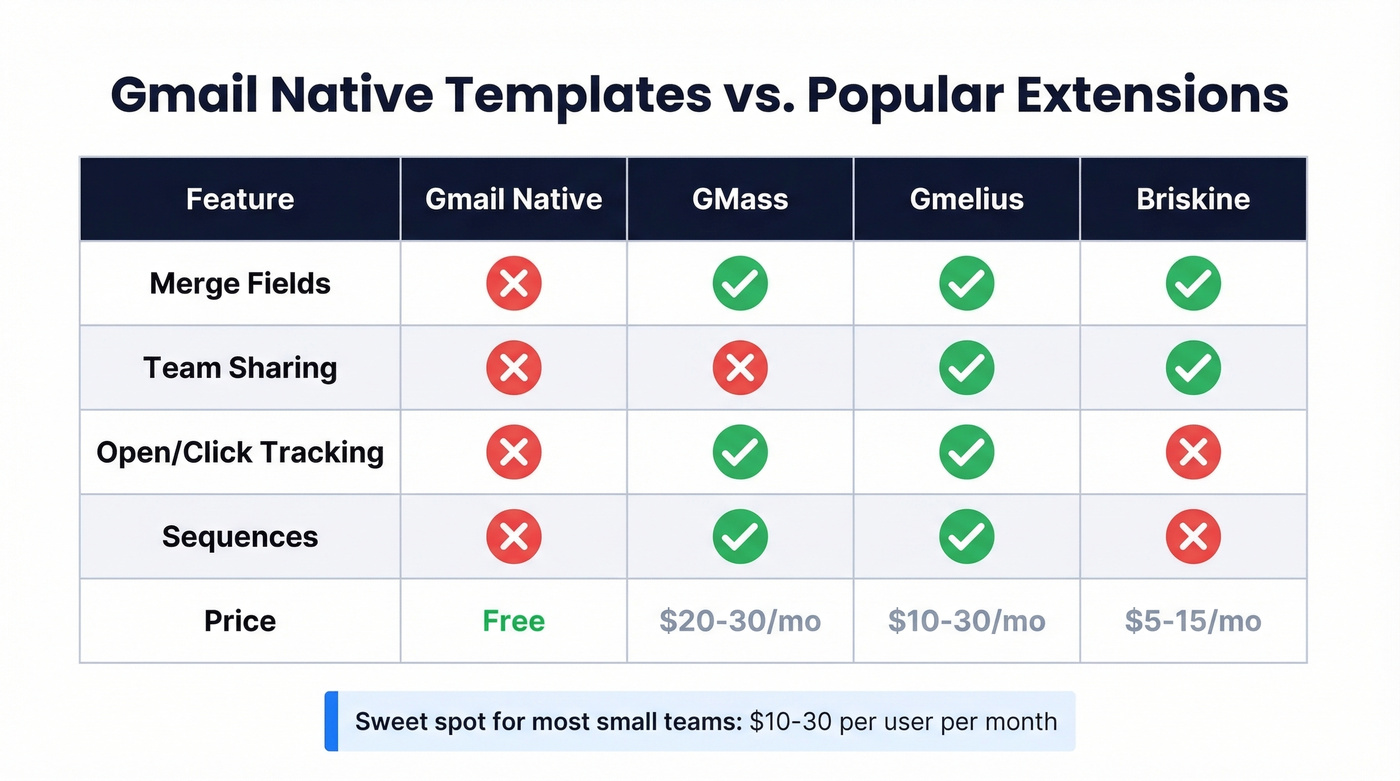
| Feature | Gmail Native | GMass | Gmelius | Briskine |
|---|---|---|---|---|
| Merge fields | No | Yes | Yes | Yes |
| Team sharing | No | No | Yes | Yes |
| Open/click tracking | No | Yes | Yes | No |
| Sequences | No | Yes | Yes | No |
| Price | Free | ~$20-$30/user/mo | ~$10-$30/user/mo | ~$5-$15/user/mo |
Mixmax is another strong option if you want full sequences with tracking inside Gmail, and it typically lands in the same general range as other sequencing tools. If you're evaluating alternatives, see our breakdown of Mixmax alternatives.
If you just need variables and basic sharing, Briskine is usually the cheapest path. For full sequences with tracking, GMass or Mixmax are the go-to picks. The sweet spot for most small teams is $10-30/user/month.
When you graduate to extensions, merge field syntax varies by tool. Gmelius uses {{to.fname}}, and many tools support a fallback pattern like {{ $first_name | fallback: 'there' }} so you don't send "Hi {FirstName}" to anyone. Check your tool's docs before building templates around variables.
Writing Gmail Outreach Emails That Get Replies
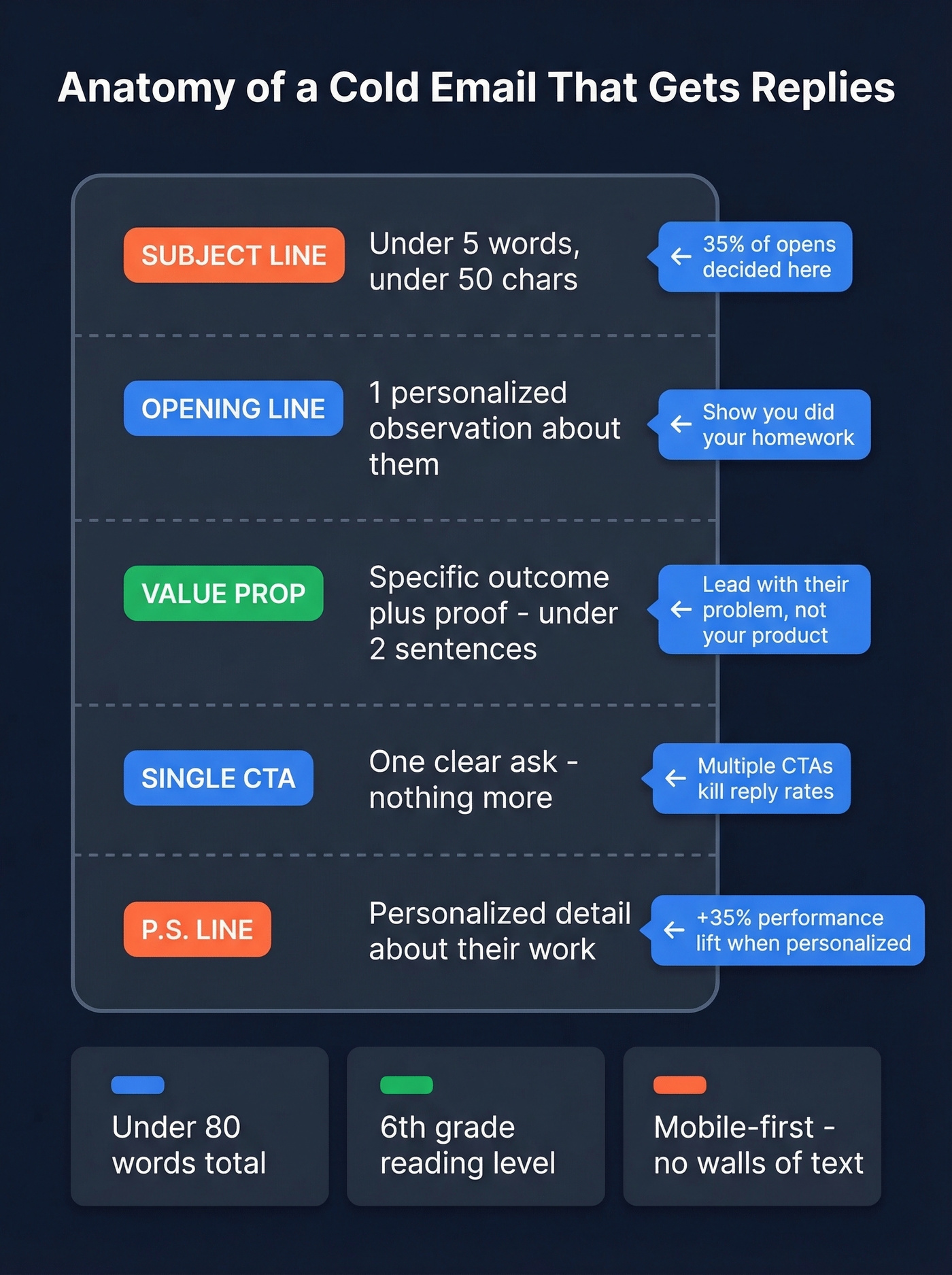
A template is a starting structure, not a finished email. The best-performing cold emails follow a consistent anatomy, then get personalized before sending. If you want a deeper framework, use this email copywriting guide to tighten structure and clarity.
Subject Line Rules
Keep subject lines under 5 words and under 50 characters. 35% of recipients decide to open based on the subject line alone, so this is where your email lives or dies. Avoid spam triggers like "FREE," "GUARANTEED," "LIMITED TIME," and anything in all-caps. Personalized subject lines lift open rates by roughly 29%. If you need ideas, pull from these cold email subject line examples.
Body Copy Rules
Emails under 80 words outperform longer ones. Some practitioners push for 60 words or fewer for maximum impact. Write at a 6th-grade reading level - that alone can drive 67% better performance. Include exactly one CTA. Not two, not three. One clear ask. For more CTA patterns, see email call to action.
Around 85% of emails are read on phones first. If your template looks like a wall of text on a 6-inch screen, it's getting deleted.
Signature Best Practices
Your signature is part of the template. Include a link to your professional profile - it can drive ~30% more profile visits and gives prospects a way to vet you. Add a phone number. Skip the heavy image signatures, logo banners, and inspirational quotes. A clean two-line signature (name, title, phone, one link) builds more trust than a branded footer that triggers spam filters.
Three Archetypes to A/B Test
Test 2-3 initial archetypes to find what resonates with your audience:
- Short and catchy - under 50 words, one punchy question, direct CTA.
- Descriptive with a metric - lead with a specific number or result, include a brief case study reference.
- Brand-voice / personality - humor, relatability, something that sounds unmistakably human.
One more thing: put your personalization in the P.S. line. Putting it there drives a +35% performance lift. People skim to the P.S. - use that real estate.

18 bounces from 50 emails isn't a template problem - it's a data problem. Prospeo's 5-step email verification delivers 98% accuracy, so your Gmail outreach actually lands. At $0.01 per email, cleaning your list costs less than a single bounce costs your domain reputation.
Stop burning your domain on unverified contacts.
5 Copy-Ready Email Templates
Every template below is under 80 words with a personalized subject line. Replace the bracketed fields before sending. Whether you need a cold email template for link building or a sales rep email for pipeline generation, adapt the structure to your use case. If you want more variations, these cold email follow-up templates and sales follow-up templates are solid add-ons.
Template 1: Cold Intro / First Touch
Subject: Quick q about [company]
Hi [First Name],
Noticed [specific observation about their company/role]. We help [type of company] [specific outcome] - [Client Name] saw [specific result] in [timeframe].
Worth a 15-min call this week to see if it fits?
[Your Name]
P.S. [Personalized detail - something you noticed about their recent work or company news.]
Template 2: Follow-Up (3-5 Days Later)
Subject: Re: Quick q about [company]
Hi [First Name],
Circling back on my note from [day]. Totally understand if the timing's off.
If [pain point] is on your radar this quarter, I can share how [Client Name] handled it - took them [timeframe] to see [result].
Either way, no pressure. Reply "not now" and I'll check back in [timeframe].
[Your Name]
Template 3: Value-First / Content Share
Subject: [Topic] data for [company]
Hi [First Name],
We just published [report/resource] on [topic relevant to their role]. The standout finding was [one-sentence insight].
Thought it'd be useful given [specific reason tied to their company]. Here's the link: [URL]
Happy to walk through the takeaways if any of it resonates.
[Your Name]
Template 4: Referral Request
Subject: Who handles [function] at [company]?
Hi [First Name],
I'm trying to connect with whoever owns [function/initiative] at [company]. Based on your role, thought you'd know the right person.
We help [type of company] [outcome] - would you mind pointing me in the right direction?
Appreciate it either way.
[Your Name]
Template 5: Break-Up / Final Touch
Subject: Closing the loop
Hi [First Name],
I've reached out a few times and haven't heard back - totally fine. I'll assume the timing isn't right and won't follow up again.
If [pain point] comes up down the road, here's my calendar link: [URL]. No expiration date.
Wishing you a great [quarter/season].
[Your Name]
Break-up emails often outperform late follow-ups in reply rate. Something about removing pressure makes people respond. Don't skip it.
Gmail Sending Limits and Safe Volume
There's a massive gap between what Gmail lets you send and what you should send for cold outreach. Confusing the two is how domains get burned. If you want the deeper mechanics behind this, see email velocity.
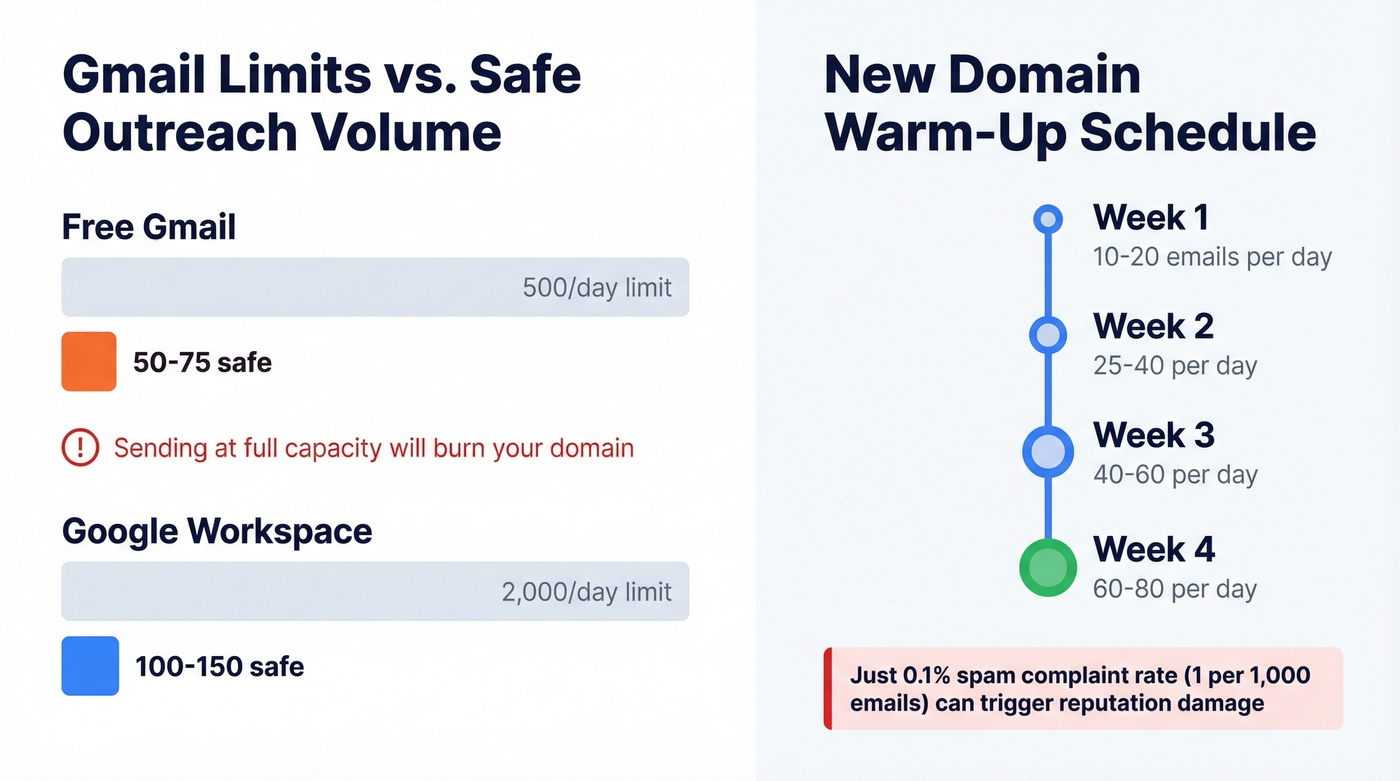
| Account Type | Daily Limit | External Recipients | Safe Cold Outreach |
|---|---|---|---|
| Free Gmail | 500 | 500 | 50-75 |
| Google Workspace | 2,000 | 2,000 | 100-150 |
The safe limit for cold outreach from a Workspace account is 100-150 emails per day - not 2,000. If you're warming up a new domain, ramp gradually:
- Week 1: 10-20 emails/day
- Week 2: 25-40/day
- Week 3: 40-60/day
- Week 4: 60-80/day
Here's the thing: a spam complaint rate as low as 0.1% - that's 1 complaint per 1,000 emails - can trigger reputation damage. Google and Yahoo require one-click unsubscribe for bulk senders, and you need to comply with CAN-SPAM, GDPR, and CASL depending on where your recipients are. Ignore this and your entire domain pays the price, not just your outreach inbox. To reduce risk, follow this email deliverability guide and keep an eye on email bounce rate.
One practitioner on r/b2bmarketing shared that running 10-15 emails per day across three free Gmail accounts produced a 7-8% reply rate. Low volume, high quality. That's the model.
Let's be honest: if your deal sizes are under $15K, you probably don't need a dedicated sending platform. Gmail plus verified data plus 50 well-targeted emails a day will outperform 500 spray-and-pray messages from a $200/month tool every single time.
Verify Before You Send
You can nail the template, respect the sending limits, ramp up perfectly - and still land in spam if your list is dirty. Bounce rates above ~5% are a strong negative deliverability signal. Bad data is the single biggest outreach killer, and it's the step most template guides completely ignore.
We've seen teams burn perfectly good domains by skipping list verification. Run your contacts through Prospeo's email verification before any campaign goes live. The 5-step process handles catch-all domains, removes spam traps, and filters honeypots - the stuff that silently destroys sender reputation. Meritt dropped their bounce rate from 35% to under 4% after switching, and their pipeline tripled from $100K to $300K per week. If you need remediation steps, start with spam trap removal.
The free tier gives you 75 verifications per month - enough to test with a starter list. Data refreshes every 7 days versus the 6-week industry average, so contacts verified today are still accurate next week. When you're only sending 50-100 emails a day, every bounce counts more.
Follow-Up Sequence Strategy
Most replies come from the first email - 58%, according to Instantly's benchmark data. But that still leaves 42% on the table. It takes an average of 5 touches to engage a prospect, with the sweet spot being 4-7 touchpoints spaced 3-5 days apart. For a full build-out, use this B2B cold email sequence guide.
Reaching executives requires around 9 touches versus 4 for individual contributors. A VP of Engineering at a Series C company isn't responding to email #2. They might respond to email #5 if the value prop is clear and consistent across the sequence.
Follow-ups that actually work share three traits. First, they reference the previous email without just forwarding it - add new context each time. Second, they vary the CTA: ask for a call in email #1, share a resource in email #3, offer a case study in email #5. Third, they're sent to verified contacts. Re-verify any list older than a month. People change jobs, companies restructure, and stale data means bounces that chip away at your sender score.
The gap between a 3.43% reply rate and 10.7% isn't just better copy - it's reaching real people at real addresses. Prospeo gives you 143M+ verified emails refreshed every 7 days, so every template you craft in Gmail hits an active inbox.
Great templates deserve verified emails behind them.
FAQ
How many templates can you save in Gmail?
Gmail doesn't publish a hard cap, but users consistently report saving 50+ templates per account without issues. Templates are per-account - each inbox needs its own set, and there's no way to bulk-import across accounts.
Can you share Gmail templates with your team?
Not natively. Gmail templates live on individual accounts with no sharing mechanism. For team-wide template libraries, Gmelius (~$10-$30/user/month) or Briskine (~$5-$15/user/month) add shared folders and collaborative editing.
How do you stop Gmail outreach emails from hitting spam?
Verify your list first - catch invalid addresses, spam traps, and catch-all domains before they bounce. Stay under 100-150 sends per day, ramp up slowly, and keep your complaint rate below 0.1%. Skip this and no amount of template optimization will save you.
Do these templates work for SMMA cold email?
Yes. If you run a social media marketing agency, Template 1 (Cold Intro) and Template 3 (Value-First) adapt well - swap the bracketed fields for SMMA-specific pain points like ad spend ROI or content pipeline gaps. The structure and length guidelines apply regardless of industry.
What makes a good BDR sample email?
The best BDR sample email has a short subject line, a personalized opener referencing the prospect's company, one clear value statement backed by a result, and a single CTA. New BDRs should start with Template 1, send 10-15 per day, and iterate based on reply data rather than gut feel.