

Salesforce Email: The Complete Setup Guide for 2026
You exported your Salesforce contacts to run an email campaign and 18% bounced. Your sender reputation took a hit, your daily send limit got chewed up, and marketing is blaming sales for bad data. Meanwhile, nobody on the team can explain the difference between Sales Cloud email, Account Engagement, and Marketing Cloud. Or why there are three products in the first place.
Email remains one of the highest-ROI channels in B2B - a long-standing industry benchmark puts the return at $38 for every $1 spent. That ROI only works if your Salesforce email setup is right and your data is clean.
What You Need (Quick Version)
- Most B2B sales teams: Sales Cloud email + Gmail/Outlook integration + clean data. That's it.
- Need nurture sequences and lead scoring: Add Account Engagement (formerly Pardot) - and align it with your lead scoring model.
- High-volume, multi-channel, transactional: Marketing Cloud - but you probably don't need it yet.
None of this matters if the email addresses in your CRM are wrong. Verify first (and keep an eye on your email bounce rate).
Which Product Do You Actually Need?
Salesforce teams typically run email through three main options with different architectures, different pricing, and different admin consoles - and no single page explaining when to use which. The 2022 Pardot rename to "Marketing Cloud Account Engagement" only made the confusion worse.
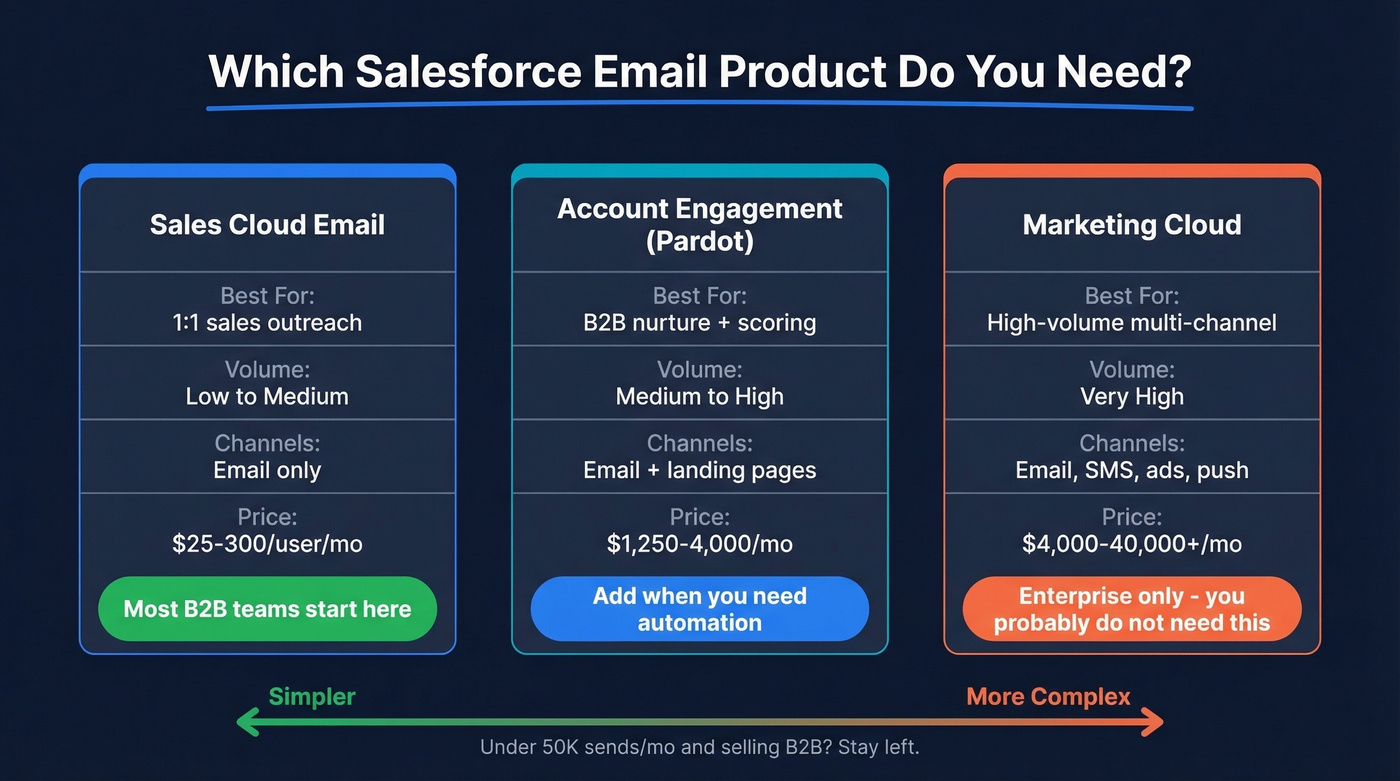
| Sales Cloud Email | Account Engagement (Pardot) | Marketing Cloud | |
|---|---|---|---|
| Best for | 1:1 sales outreach | B2B nurture + scoring | High-volume, multi-channel |
| Email volume | Low-medium | Medium-high | Very high |
| Channels | Email only | Email + landing pages | Email, SMS, ads, push |
| Architecture | Native to core platform | Built on core platform | Separate platform, connectors |
| Typical buyer | Sales teams | Marketing + RevOps | Enterprise marketing |
| Price range | ~$25-300/user/mo | ~$1,250-4,000/mo | ~$4,000-40,000+/mo |
Sales Cloud email is what most reps use every day - sending individual messages from contact records, logging activity, using templates. Account Engagement layers on automation: drip sequences, lead scoring, engagement history tied to opportunities.
Marketing Cloud is a different animal entirely. It's not built on the core Salesforce platform - it uses connectors for bidirectional sync. You're buying modules: Email Studio, Journey Builder, Content Builder, Mobile Studio. Social Studio, the social listening module, is being retired. The whole thing is built for high-volume, multi-channel operations sending millions of messages.
Here's the thing: you probably don't need Marketing Cloud. The overwhelming majority of B2B teams are fully covered by Sales Cloud plus Account Engagement. Marketing Cloud is for the remaining 5% running enterprise-scale operations across channels.
If your total volume is under 50,000 sends per month and you're selling B2B, Marketing Cloud is an enterprise-grade distraction. Spend that budget on data quality instead (start with data enrichment services).
Sending Email from Salesforce
Gmail and Outlook Integration
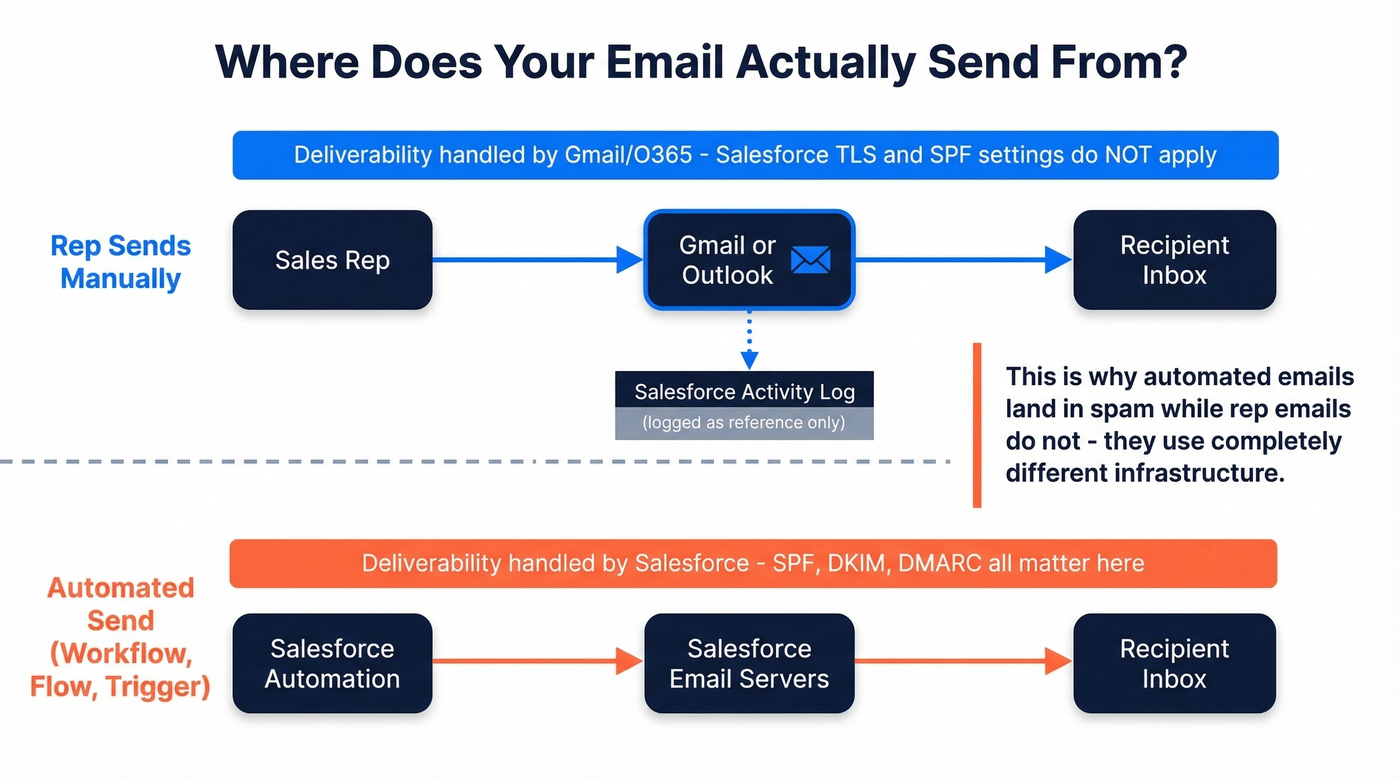
The most common setup: reps send from their Gmail or Outlook accounts, but the activity logs in Salesforce. Reps stay in their inbox, and all communication history lands on the contact record.
Gmail integration:
- Navigate to Setup -> External Email -> Send through External Email Services
- Enable Gmail Integration and Sync
- Install the Salesforce extension from the Chrome Web Store
- Users need a standard profile or the "Send Email through External Email Service" permission
Outlook integration:
- Enable Outlook Integration and Sync in Setup
- Register your domain if required for your Outlook setup
- Install the Salesforce add-in from Microsoft AppSource
- Authorize Salesforce from within Outlook
Here's the behavioral note most admins miss: when reps send via Gmail or Office 365 through Salesforce, deliverability and compliance are handled by Gmail/O365 - not Salesforce. Your TLS and deliverability settings don't apply. Delivery logs live in the external provider, not in Salesforce email logs. Email forwarding management also isn't supported when sending through external accounts.
Workflow and trigger-based emails still send through Salesforce's own infrastructure. That distinction matters when you're troubleshooting why automated emails land in spam while rep emails don't (see a broader email deliverability guide if you need a full diagnostic flow).
Enhanced Email
Enhanced Email changes how Salesforce stores sent messages. With it enabled, emails are stored as both EmailMessage and Task records, giving you richer detail on the message itself rather than just a task log entry.
Two gotchas: custom currency fields aren't supported on EmailMessage objects, and workflow rules on EmailMessage can only update fields on Case records. If you're trying to trigger automations off sent emails for non-Case objects, you'll need a different approach - typically Flow.
Email-to-Salesforce (BCC Logging)
This is the low-tech option. Reps BCC a unique Salesforce-generated address, and the email gets logged to the relevant record.
To enable:
- Admin: Setup -> Email to Salesforce -> Edit -> Active
- Each user: Settings -> My Email to Salesforce to grab their unique BCC address
- Configure "My Acceptable Email Addresses" so only emails from approved addresses get processed
The limits that'll bite you: Salesforce processes a maximum of 50 unique addresses in the To/CC fields per email. It can create up to 50 email activities per received email, and each created task can link up to 50 contacts. That 50-address cap is the gotcha for teams with large distribution lists - anything beyond 50 recipients simply gets ignored during processing. If your reps regularly email large groups, BCC logging silently drops data.
Einstein Activity Capture - Setup and Gotchas
Einstein Activity Capture automatically syncs emails and calendar events between your email provider and Salesforce. On paper, it's the dream: no manual logging, everything captured. In practice, it's useful but dangerous.
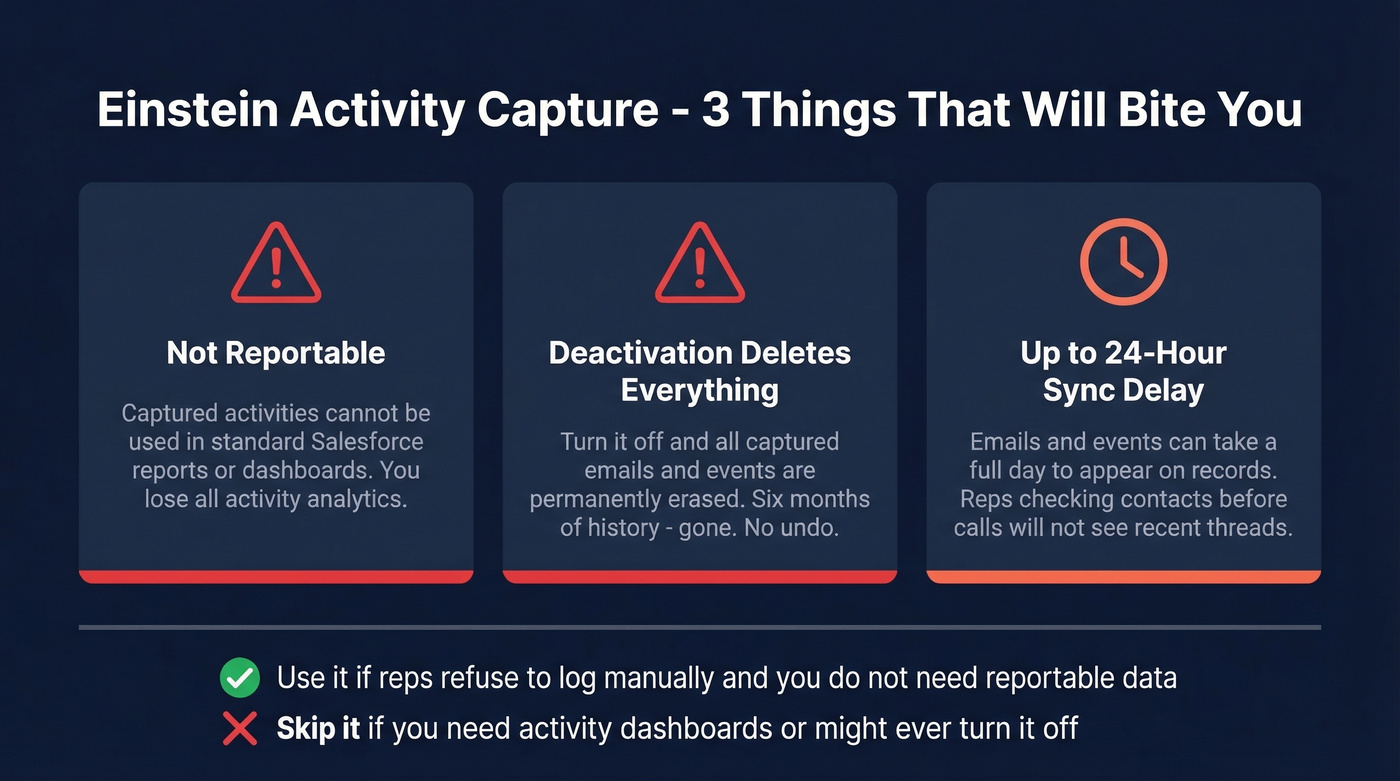
Use this if you want hands-free email and calendar sync, your reps refuse to manually log activity, and you're comfortable with the tradeoffs below.
Skip this if you need reportable data, you might ever deactivate the feature, or you need real-time sync.
Three critical warnings:
EAC data isn't reportable via standard reports. You can't build dashboards or reports on captured activities the way you can with manually logged tasks. We've found the reporting limitation is the bigger issue for most teams - they can live with sync delays but can't live without activity dashboards.
Deactivating EAC erases all captured activities. This isn't a pause - it's a delete. Every synced email and event disappears. If leadership decides to turn it off after six months, you lose six months of activity history. Gone.
Sync delay can hit 24 hours. Emails and events take up to a full day to appear on related records. Reps checking a contact before a call won't see yesterday's email thread.
That data deletion behavior on deactivation should make every admin nervous. Document the risk before you enable it.

You just read about 18% bounce rates wrecking sender reputation. That's what happens when Salesforce CRM data goes stale. Prospeo enriches your Salesforce contacts with 98% verified emails on a 7-day refresh cycle - not the 6-week industry average. With native Salesforce integration and 83% enrichment match rates, your reps send to real inboxes.
Stop burning send limits on dead addresses. Verify before you hit send.
Building Lightning Email Templates
Lightning Email Templates aren't enabled by default - a fact that surprises most new admins.
- Navigate to Setup -> Lightning Email Templates
- Turn on Folders and Enhanced Sharing for access control
- Grant users the permission "Access drag-and-drop content builder"
- Wait about 15 minutes or have users re-login for the builder UI to appear
- Create templates via App Launcher -> Templates -> New -> Edit in Builder
Limitations that'll slow you down: Cross-object merge fields aren't supported. If you want to pull Account fields into a Contact email template, you're out of luck without workarounds. You also can't edit Classic templates in the Lightning builder - you'll need to recreate them from scratch. The old "Send Test and Verify Merge Fields" feature from Classic doesn't exist in Lightning either.
One useful workaround: if you need a link back to the record in the email body, use the merge field {{{Contact.link}}} or the equivalent for your object. It's not documented prominently, but it works.
If you're building outreach templates for reps, it also helps to keep a library of proven sales follow-up templates.
Deliverability Setup (The Admin Checklist)
Your VP of Sales just asked why half the team's emails are going to spam. You check deliverability settings and realize nobody ever configured SPF or DKIM. Let's walk through the full checklist.
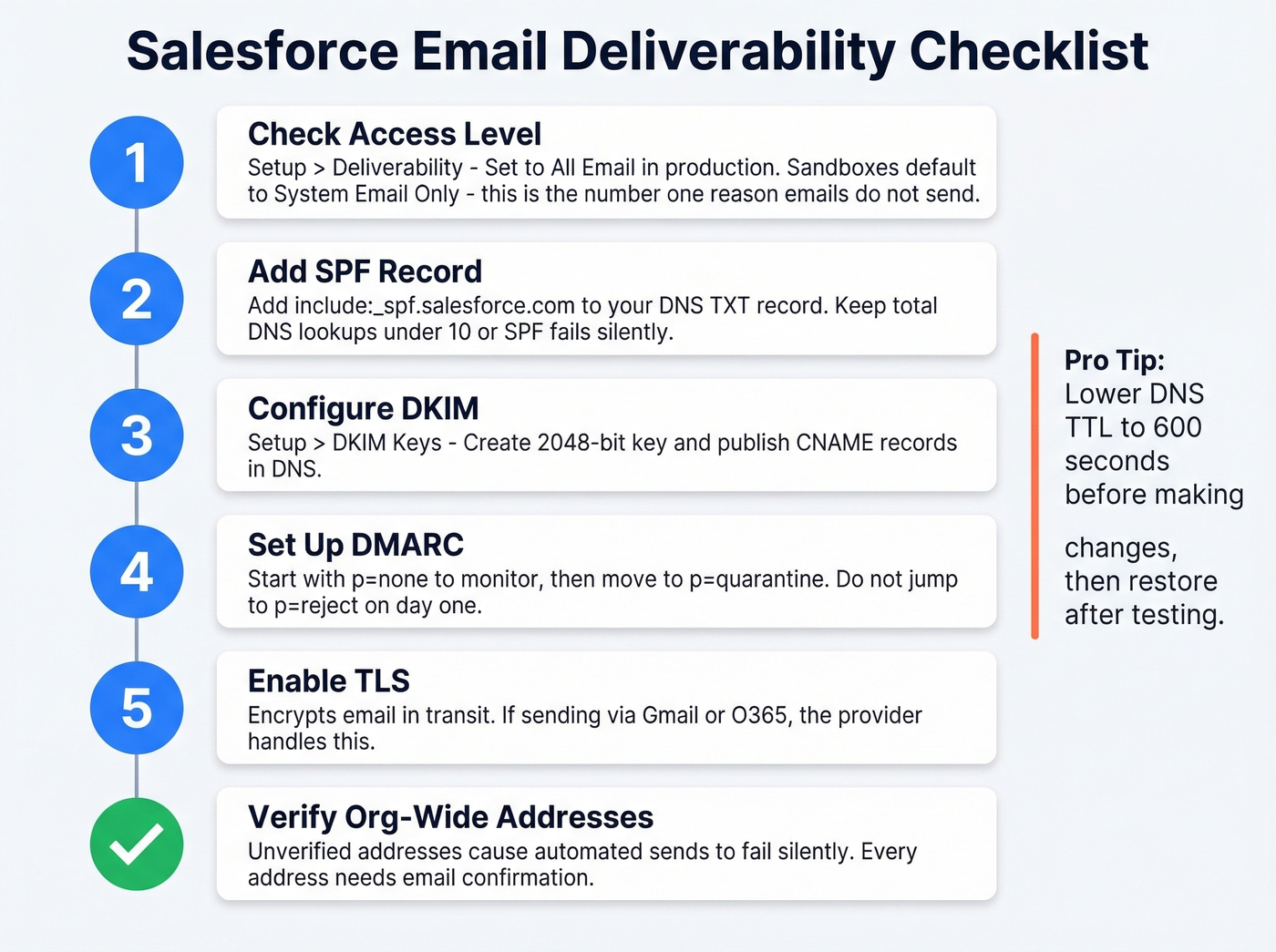
Access Level: Navigate to Setup -> Email -> Deliverability. Sandboxes and new orgs default to "System Email Only," which blocks all external email. Production typically uses "All Email." This is the #1 reason emails "aren't sending" in a new org.
SPF record: Add include:_spf.salesforce.com to your domain's DNS TXT record. If you don't have an existing SPF record, create one: v=spf1 include:_spf.salesforce.com ~all. Keep your total SPF DNS lookups under 10 - that's a hard limit in the SPF spec, and exceeding it causes silent failures. (If you need patterns and provider-specific syntax, use these SPF record examples.)
DKIM: Navigate to Setup -> Email -> DKIM Keys. Create a 2048-bit key and publish the resulting CNAME records in your DNS. This signs your outbound emails so receiving servers can verify they actually came from your domain. If you want to validate the setup end-to-end, see how to verify DKIM is working.
DMARC: Start with p=none to monitor without enforcement, then tighten to p=quarantine once you're confident legitimate emails are passing. Don't jump straight to p=reject unless you enjoy fielding panicked Slack messages from sales.
TLS: Enable on the Deliverability page to encrypt email in transit. If you're sending through Gmail/Office 365 via external email services, TLS is handled by the provider.
Compliance BCC: Setup -> Email -> Compliance BCC Email. This sends copies of most outbound messages to a nominated inbox - useful for troubleshooting and compliance audits. It covers most outbound email except certain system notifications like password resets.
Org-Wide Email Addresses: Setup -> Email -> Organization-Wide Addresses. Every address must be verified via confirmation email. Unverified addresses cause automated sends from workflows and Flows to fail silently.
DNS tip: Lower your DNS TTL to 600 seconds before making SPF/DKIM/DMARC changes. This lets changes propagate faster during testing. Restore your normal TTL afterward.
Before troubleshooting SPF records, though, check whether the addresses you're sending to are valid. Prospeo's bulk email verification catches bad recipient addresses before they generate bounces that damage sender reputation - regardless of how perfect your DNS is. If you're actively trying to recover domain health, this guide on how to improve sender reputation can help.

Sending Limits You Need to Know
Every Salesforce org has sending ceilings. Most teams don't know about them until they hit one mid-campaign.
| Email Type | Daily Limit | Notes |
|---|---|---|
| Single Email | 5,000/day (org-wide) | Includes all individual sends |
| Mass Email | 1,000-5,000/day | Varies by edition |
| API Email (SingleEmailMessage) | 1,000/day | Separate from UI sends |
Exact numbers vary by edition and configuration. Verify your specific org's limits in Setup under Email Administration. (If you're planning outbound at scale, it helps to understand email velocity and how limits interact with deliverability.)
For teams that need higher volume, the typical path is Account Engagement, Marketing Cloud, or an AppExchange tool like MassMailer.
Tracking Email Activity
With Enhanced Email enabled, Salesforce tracks opens and clicks for emails sent directly from the platform. The limitations are real.
There are no real-time alerts. You won't get a notification when a prospect opens your email - you'll see it in the activity timeline the next time you check the record. Emails sent from Outlook or Gmail aren't tracked at all without additional integrations or sync tools. If your reps live in their inbox - and most do - native tracking misses the majority of their activity.
The tracking split matters: Sales Cloud tracks individual engagement (did this person open this message?), while Marketing Cloud tracks campaign-level metrics - deliverability rates, unsubscribes, engagement scoring across journeys.
For context, Salesforce's own data shows average open rates rose from 33.07% in 2023 to 36.24% in 2024. But take open rates with a grain of salt. Apple Mail Privacy Protection and bot pre-fetching inflate open numbers significantly. Opens are directionally useful for spotting trends - they're not reliable as a standalone metric for individual rep performance. If you need a deeper technical breakdown, see email tracking pixels.
The Data Quality Problem
Your email setup is only as good as your data. You can perfect deliverability, templates, and tracking - but if the addresses in your CRM are wrong, you're burning send limits and damaging your sender reputation with every batch.
The math is straightforward. If 15-20% of your CRM addresses are invalid - common in orgs that haven't cleaned data in six months - every mass send wastes a chunk of your daily limit on bounces. Those bounces signal to receiving servers that you're a careless sender. Your domain reputation drops. Legitimate messages start landing in spam. It's a compounding problem, and it sits upstream of every other optimization in this article.
We've seen teams spend weeks debugging SPF records and DKIM keys when the real issue was 12,000 stale addresses in their Salesforce org. Fix the data first.
Prospeo's native Salesforce integration handles this directly - enriching and verifying contact records inside your org with 98% email accuracy, an 83% enrichment match rate, and 50+ data points per contact. Data refreshes every 7 days compared to the 6-week industry average. Free tier, no contracts, and setup takes minutes.
You can perfect your Salesforce email setup - Gmail integration, Einstein Activity Capture, Account Engagement - and still fail if 1 in 5 addresses bounces. Prospeo's CRM enrichment returns 50+ data points per contact at $0.01/email with a 92% match rate. Plug it into Salesforce via native integration and fix the root cause.
The best email infrastructure can't save bad data. Fix the source.
FAQ
Can I send mass email from Sales Cloud?
Yes, but with strict limits - 1,000 to 5,000 recipients per day depending on your edition. For higher volumes or automated drip sequences, add Account Engagement or an AppExchange tool like MassMailer. Marketing Cloud is only necessary at enterprise scale.
What's the daily sending limit in Salesforce?
The org-wide single email limit is 5,000 per day, shared across all users and automated processes. Mass email caps at 1,000-5,000 depending on edition, and API sends have a separate 1,000/day ceiling. Check Setup -> Email Administration for your org's exact numbers.
Do I need Marketing Cloud for email marketing?
Most B2B teams don't. Account Engagement handles nurture sequences, drip campaigns, and lead scoring for under $4,000/month. Marketing Cloud starts at ~$4,000/month and is built for enterprise-scale, multi-channel operations. Unless you're at that volume, it's overkill.
How do I fix emails going to spam?
Configure SPF, DKIM, and DMARC for your sending domain - missing authentication is the #1 cause. Verify all org-wide addresses, set your Deliverability Access Level to "All Email," and audit your recipient list. Bulk verification catches invalid addresses before they generate bounces that tank your domain reputation.
How do I keep CRM email data clean?
Validate addresses before every campaign send - even quarterly cleanups aren't enough given average job-change rates. Use a tool with automated enrichment on a recurring cycle so records stay current as contacts change roles. Prevention is cheaper than recovering from deliverability damage.