How to Get a Company Email in 2026 (Without Breaking Deliverability)
Creating an inbox is easy. The part that makes people rage-quit is sending the first "real" email and watching it land in spam (or bounce) because the domain isn't authenticated and mailbox providers don't trust it yet.
Here's the thing: getting an address is simple. Getting mailbox providers to trust your domain is the job, and that trust gets built (or wrecked) by DNS authentication plus how you behave in the first week.
A company email is just an email address on your own domain (like you@yourcompany.com) instead of a provider-owned address (like Gmail/Yahoo). Do the setup right once and you won't be stuck "rebuilding deliverability" later.
What you need (quick version)
If you can check these off, you can get a company email working today and keep it out of spam next week.

Prereqs
- A domain name (plan $10-$20/year for a .com)
- An email host (plan $3-$12/user/month for mainstream options)
- Access to your domain's DNS settings (registrar or DNS provider like Cloudflare)
- 30-90 minutes of focused setup time (the "focused" part matters)
Two beginner gotchas that save hours
- Decide where DNS is actually hosted before you edit anything. Lots of people buy a domain in one place, then point nameservers somewhere else (like Cloudflare). If you edit DNS in the wrong dashboard, nothing changes.
- Don't use "web-hosting email" for outbound. The mailbox might work, but deliverability is often shaky. If you're emailing customers, candidates, partners, or leads, use a dedicated email host.
Plan your addresses now (so you don't rename later)
- Personal inboxes:
first@,first.last@ - Role addresses:
info@,billing@,support@,careers@Role addresses are long-lived; people aren't.
Fast path (solo founder / tiny team)
- Buy a domain
- Pick a provider with a clean admin experience (Zoho, Fastmail, or Microsoft 365)
- Add MX records
- Turn on DKIM
- Publish a basic DMARC record (
p=none) - Send a few normal emails before you do any outbound campaigns
IT-grade path (teams that can't afford email issues)
- Separate "human mail" from "bulk mail" using subdomains
- SPF that covers every sender (and stays under the 10-lookup limit)
- DKIM enabled for every sending system
- DMARC with reporting, then staged enforcement (none -> quarantine -> reject)
- Ongoing hygiene: monitor bounces/complaints and rotate DKIM keys as an ops best practice
DNS is the part that trips most beginners.
The upside: once you set it correctly, it stays boring.
Do you really need a domain for a company email?
Use a domain-based company email if...
- You want credibility (
name@company.combeatscompanyname@gmail.comin B2B). - You want control and portability (switch providers without changing addresses).
- You care about deliverability long-term (authentication and reputation attach to your domain).
Skip buying a domain (temporarily) if...
- You're validating an idea and just need a contact address for a week.
- You're not sending outbound at all and brand polish genuinely doesn't matter yet.
Most "free business email" offers aren't actually free company email. They're usually one of these:
- Provider-owned domains (you don't own the domain, so you can't take it with you).
- Subdomain addresses (like
you@yourbrand.someprovider.com), which scream "temporary." - "Free for the first year" promos that bundle a real domain, then renew at normal rates.
Provider-owned domains are the trap. They're not portable, and they're not really "your" identity. If you're serious enough to want a company email, you're serious enough to spend $10-$20/year on a domain.
How to get a company email on your domain (step-by-step)
This workflow works across basically every registrar and email provider. Follow it in order and you'll avoid most common mistakes.
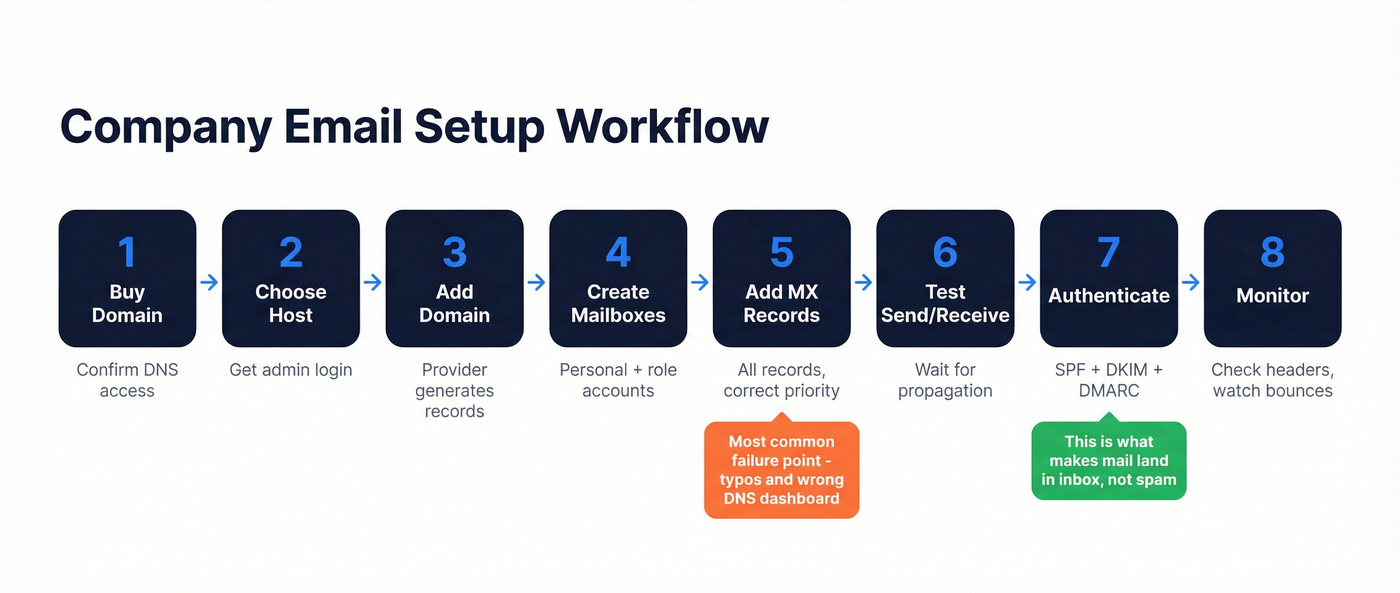
1) Buy a domain (or confirm you own it)
- Buy a
.com(or your local equivalent). Budget $10-$20/year. - Use a registrar you trust, and turn on auto-renew.
- Confirm where DNS is managed (registrar DNS vs Cloudflare vs your web host).
Checkpoint: You can access DNS records for the domain (TXT, MX, CNAME).
2) Choose an email host
Pick the provider first, because they'll give you the exact DNS records you need.
- Want the default corporate setup and strong admin/security controls? Microsoft 365.
- Want the cheapest legit setup? Zoho Mail.
- Want a clean, no-bloat email experience? Fastmail.
If you're not sure, jump to the provider table, pick one, then come back and copy the DNS records they give you.
Checkpoint: You've got an admin login for the email provider.
3) Add your domain inside the provider admin
This is where the provider generates the records you'll publish in DNS (verification TXT, MX, DKIM CNAMEs, etc.).
Checkpoint: The domain shows as "added" in the provider, even if it isn't verified yet.
4) Create mailboxes + aliases
Create:
- Personal inboxes:
first@,first.last@, etc. - Role accounts (aliases or shared mailboxes):
info@,billing@,support@,careers@
Rule of thumb: Don't share one mailbox password across multiple humans. Use shared mailboxes or group inboxes.
Checkpoint: You can log into at least one mailbox (even if sending/receiving isn't working yet).
5) Add MX records
MX records tell the world where to deliver mail for your domain.
MX basics that trip people up
- Add all MX records your provider gives you (not just the first one).
- Use
@for the root domain host/name (some DNS UIs want it blank; same idea). - Set priority exactly as instructed (lower number usually = higher priority).
- Don't delete existing MX records until you're ready for cutover if you're migrating.
If you're moving from an old provider, do a planned cutover:
- Lower your DNS TTL ahead of time (like 300 seconds).
- Add new MX records.
- Wait for propagation.
- Remove old MX records once you've confirmed delivery.
Checkpoint: Your DNS zone has the provider's MX records saved with no typos.
6) Test send/receive + wait for propagation
Test in this order:
- Send from your new mailbox to a personal address (Gmail/Outlook).
- Reply back to your new mailbox.
- Send between two mailboxes on your domain (if you created two).
Propagation expectations
- DNS changes often work in minutes, but full propagation can take up to 48 hours depending on TTL and caching.
- Wix + Google Workspace activation can take up to 24 hours to become fully functional.
Don't "fix" a correct setup just because you didn't wait long enough. That's how people break working DNS.
Escalate like this
- 0-2 hours: normal waiting window, keep testing.
- 2-24 hours: re-check for typos, missing MX records, wrong host (
@vswww), wrong priority. - 24-48 hours: contact provider support and confirm you're editing DNS in the right place.
Checkpoint: You can send and receive email reliably.
7) Add authentication (SPF, DKIM, DMARC)
MX gets mail delivered. Authentication gets mail trusted. If you skip this, you're gambling with inbox placement.
You'll set:
- SPF (TXT)
- DKIM (TXT or CNAME, depending on provider)
- DMARC (TXT)
Checkpoint: SPF and DMARC validate, and DKIM's enabled in your provider.
8) Re-test + monitor
- Send a few normal emails (no "salesy" links, no tracking pixel soup).
- Check headers in Gmail/Outlook to confirm SPF/DKIM/DMARC pass.
- Watch bounces and spam complaints closely for the first week.
Time expectations (typical)
- Domain purchase: 5-10 minutes
- Provider setup + mailbox creation: 15-30 minutes
- DNS records: 10-20 minutes
- Propagation + testing: 15 minutes to 48 hours

You just built a company email that won't hit spam. Now imagine finding anyone else's company email just as reliably. Prospeo's email finder returns 98% accurate, verified addresses from 300M+ profiles - so your first outbound campaign actually lands.
Stop guessing email formats. Get verified company emails for $0.01 each.
DNS records cheat sheet (MX/SPF/DKIM/DMARC)
This is the "don't-mess-it-up" mini reference. Your provider will give you exact values (use theirs), but these are the patterns and the common mistakes.
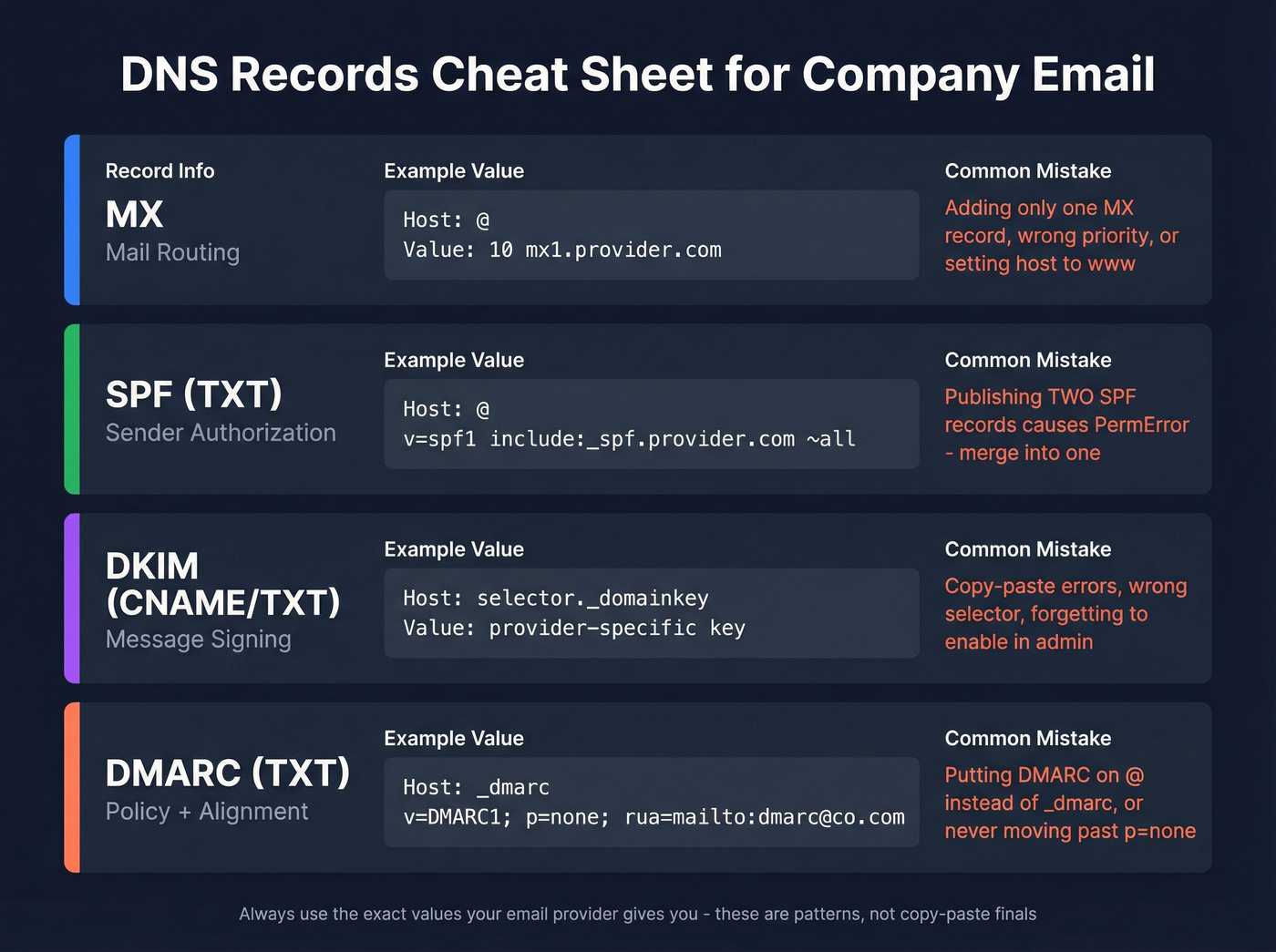
| Record | Type | Name/Host | Value (example) | Most common mistake |
|---|---|---|---|---|
| Mail routing | MX | @ |
10 mx1.provider.com (plus additional MX records) |
Adding only one MX record, wrong priority, or setting host to www |
| Sender authorization | TXT (SPF) | @ |
v=spf1 include:_spf.provider.com ~all |
Publishing two SPF records (causes SPF PermError) |
| Message signing | CNAME or TXT (DKIM) | selector._domainkey |
Provider-specific DKIM key/target | Copy/paste errors, wrong selector, or forgetting to enable DKIM in admin |
| Policy + alignment | TXT (DMARC) | _dmarc |
v=DMARC1; p=none; rua=mailto:dmarc@yourcompany.com |
Putting DMARC on @ instead of _dmarc, or never moving past p=none |
Deliverability requirements in 2026 (why authentication isn't optional)
In 2026, "I set up MX so I can send email" isn't the bar. The bar is "mailbox providers trust my domain." And they've made the rules blunt: authenticate, keep complaints low, and make unsubscribing easy for bulk mail.

Yahoo bulk sender requirements (enforced since Feb 2024):
- Spam rate < 0.3%
- Bulk senders: SPF + DKIM + DMARC (DMARC policy at least
p=none) and DMARC must pass- One-click unsubscribe (List-Unsubscribe with RFC 8058 support)
What counts as a "bulk sender" in real life? If you're sending newsletters, running outbound sequences, or pushing product notifications at scale, you're in bulk-sender territory. It doesn't have to be "enterprise volume" to trigger stricter filtering; patterns matter, and repetitive templates plus high bounces plus even a small number of complaints can get you filtered fast.
Hot take: if you're only sending a handful of 1:1 emails per day, you don't need a "deliverability stack." You need correct SPF/DKIM/DMARC and basic common sense. The moment you start scaling outbound, deliverability stops being "marketing stuff" and becomes core infrastructure. (If you need the deeper playbook, see Email Deliverability 2026.)

Set up SPF, DKIM, and DMARC (plain-English + copy/paste examples)
This is the difference between "email works" and "email lands in inbox."
SPF (TXT): authorize senders
SPF tells recipients which servers are allowed to send mail for your domain (specifically the envelope sender / MAIL FROM domain).
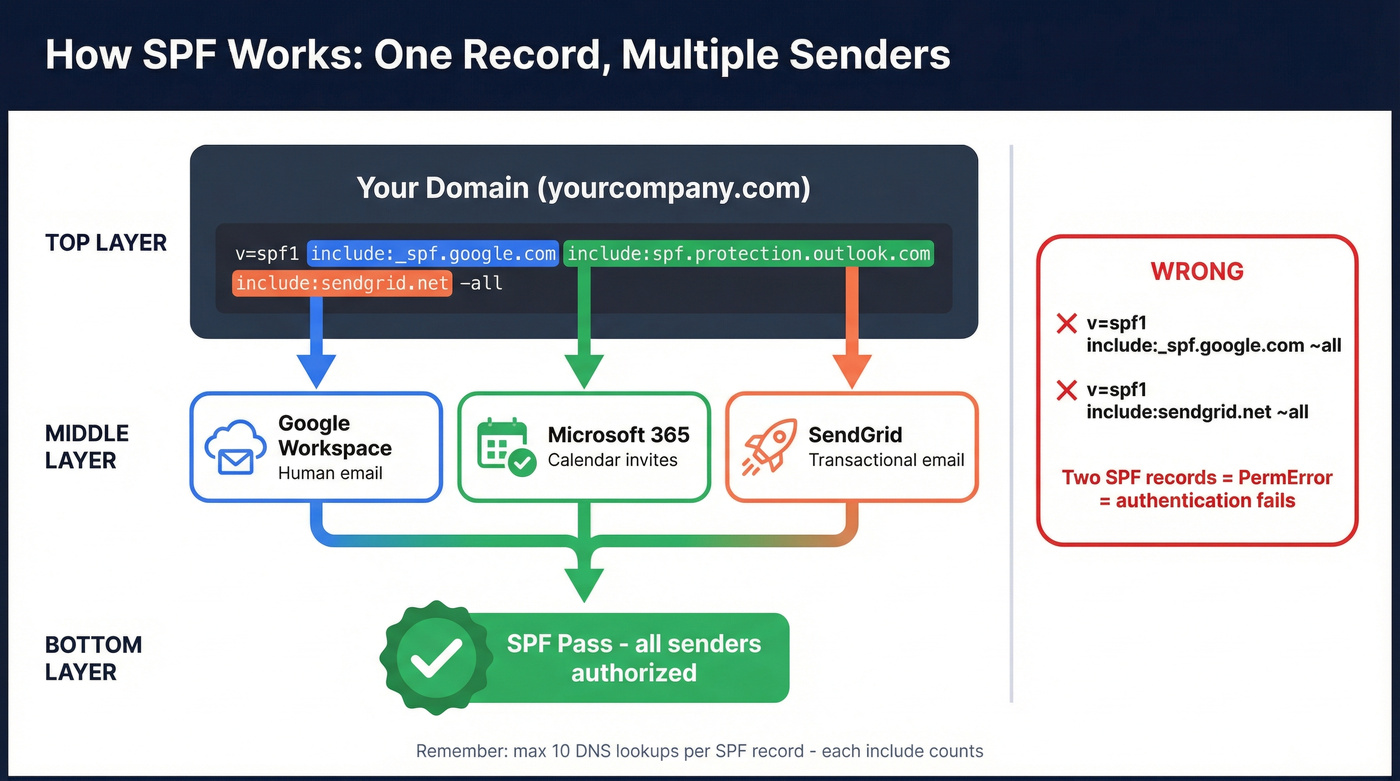
Non-negotiables
- You should have one SPF record per domain. One. If you publish two SPF TXT records, many receivers return SPF PermErrors.
- Start with
~all(soft fail) while you're still discovering all your senders. - Move to
-all(hard fail) once you're confident.
Copy/paste example (Google Workspace-style)
v=spf1 include:_spf.google.com ~all
If you use multiple senders (Microsoft 365 + a helpdesk + an outbound tool), you add multiple include: mechanisms into the same single SPF record.
SPF lookup warning (read this once, save yourself later): if you stack tools, you can hit the 10 DNS lookup limit faster than you expect. (More detail: SPF Record.)
SPF is per-domain (subdomain rule):
If you send from marketing.yourcompany.com, publish an SPF record for that subdomain too. SPF on the apex (yourcompany.com) doesn't automatically cover subdomains.
MAIL FROM gotcha Lots of tools send with a different envelope sender than your visible From address. SPF checks the envelope sender domain, not the pretty From name your rep sees. That's why DMARC alignment matters. (If you want the full plain-English breakdown, see SPF DKIM & DMARC Explained.)
DKIM: prove the message wasn't altered
DKIM signs parts of the email (headers/body) so the recipient can verify it wasn't modified in transit. The signature is in the DKIM-Signature header, and the signing domain is the d= value.
What people miss
- You can have multiple DKIM signatures on a message (a vendor signature plus your domain signature).
- In Microsoft 365, DKIM public keys are published as CNAME records (not TXT like some systems).
Microsoft 365 gotcha (big one): for custom domains, no DKIM signing happens until you configure it. You can be "using Microsoft 365" and still send unsigned mail from your domain.
So if you're on Microsoft 365:
- Add the DKIM CNAME records Microsoft gives you in DNS.
- Enable DKIM in the admin/security settings for the domain.
DMARC: enforce alignment + reporting
DMARC is the policy layer. It tells receivers what to do when authentication fails, and it enforces alignment between:
- Visible From domain (5322.From), and
- Either SPF's MAIL FROM domain (5321.MailFrom) or DKIM's d= signing domain
DMARC passes when: SPF passes and aligns or DKIM passes and aligns. DMARC fails when: both fail, or they pass but don't align.
Copy/paste starter DMARC record (aggregate-only)
v=DMARC1; p=none; rua=mailto:dmarc@yourcompany.com
That's monitoring mode. It won't block spoofing, but it will show you who's sending as your domain. (Workflow and tooling: DMARC monitoring.)
Optional (advanced): forensic reports (ruf)
Only add ruf= if your mailbox providers and your DMARC tooling support it and you're comfortable with the privacy/volume implications. Many providers restrict or ignore forensic reporting now.
A DMARC rollout timeline that works (and doesn't break legitimate mail)
Most teams fail DMARC the same way: they publish p=none and never touch it again. Don't do that. Use a staged rollout with a calendar.
Week 1: Monitor (p=none)
- Publish DMARC with
rua=. - Review reports and list every sending source:
- Your mailbox provider (Microsoft/Google/Fastmail/Zoho)
- Support/ticketing
- Marketing/newsletter
- Product notifications
- Any outbound platform
- Fix obvious misalignment (common: a tool uses its own DKIM domain and a different MAIL FROM).
Week 2: Tighten alignment
- Ensure every major sender has DKIM enabled where possible.
- Ensure SPF includes every legitimate sender.
- If a vendor can't align on your root domain, move them to a subdomain (example below).
Week 3: Quarantine (p=quarantine; pct=25)
- Start with partial enforcement (25%).
- Watch for false positives in reports (legit sources failing DMARC).
Week 4: Quarantine at 100%
- Move to
pct=100. - At this point, spoofing attempts should be getting punished and your legitimate mail should be clean.
Week 5+: Reject (p=reject)
- Flip to reject once reports show only legitimate aligned sources.
- Keep reviewing weekly until it's boring, then monthly.
In our experience, the tool matters less than the habit: review weekly until you can enforce quarantine/reject confidently, because "set and forget" DMARC is how spoofing and misalignment linger for years.
Minimum viable records (solo) vs team sending outbound
Minimum viable (solo, just mailbox + light sending)
- SPF: one record, includes your email host, ends with
~all - DKIM: enabled for your domain
- DMARC:
p=nonewith aggregate reporting
Team sending outbound (sequences, newsletters, support tools)
- SPF: includes every sender, stays under lookup limits
- DKIM: enabled everywhere you can enable it
- DMARC: staged rollout toward
quarantine/reject - Subdomains for bulk:
marketing.yourcompany.com,notify.yourcompany.com
Separate subdomains (the clean way to protect your main domain)
If you do any meaningful outbound, separating subdomains is the simplest way to avoid "one tool ruins everything."
Use these three lanes
yourcompany.com= human 1:1 mail (sales reps, founders, execs)marketing.yourcompany.com= campaigns, newsletters, outbound sequencesnotify.yourcompany.com= product/system mail (password resets, receipts, alerts)
What changes operationally
- Each subdomain gets its own DNS auth: SPF + DKIM + DMARC for that subdomain.
- Reputation stays compartmentalized. If marketing gets complaints, your CEO's 1:1 email doesn't pay the price. (Background: what is domain reputation.)
Concrete example
- From:
jane@yourcompany.com(human mail) - From:
jane@marketing.yourcompany.com(outbound sequences) - From:
alerts@notify.yourcompany.com(system notifications)
I've seen teams ignore this, blast cold outbound from the root domain, then spend months wondering why invoices and calendar invites started landing in spam. It's a brutal, avoidable mistake.
This structure is boring, and boring is exactly what you want from email infrastructure.
Choose an email provider (pricing + who it's for)
Email hosting is one of those categories where "cheap" gets expensive fast, usually in admin time, migration pain, or deliverability weirdness. Sticker shock is real too: Google Workspace plus a website builder bundle plus extra storage can turn "$6/user" into a meaningful monthly bill.
If you want the simplest decision rule: Microsoft 365 for most teams, Zoho for budget, Fastmail for email-only simplicity. (If you're also choosing an outreach stack, compare options in cold email outreach tools.)
Pricing + fit table (recommended)
| Provider | Price (USD) | Best for | Key tradeoff |
|---|---|---|---|
| Microsoft 365 | $6/user/mo | Most SMBs | More admin knobs |
| Exchange Online | $4/user/mo | Email-only (Microsoft) | No Office apps |
| Google Workspace | ~$6/user/mo (starter) | Google-first teams | Cost creeps with tiers/add-ons |
| Zoho Mail | Free to ~$1-$4/user/mo | Cheapest legit | Free tier lacks IMAP/POP/ActiveSync |
| Fastmail | $6/mo ($5/mo yearly) | Simple + fast | Fewer "suite" apps |
| Proton Mail | ~$7-$13/user/mo (tiered) | Privacy-first | Some workflow/integration friction |
| GoDaddy Email | ~$6-$12/user/mo | Bundled domains | Upsells + bundle gravity |
| Web-hosting email (DreamHost-style) | ~$0-$3/user/mo | Basic inboxes | Weak deliverability for outbound |
My 3 default picks (the ones we'd choose again)
Zoho Mail Free Perfect when you need a real domain email on a budget. The constraint's real: no IMAP/POP/ActiveSync on the free tier, so you'll live in Zoho's web/mobile apps. If you can accept that, it's the best "legit and cheap" option on the market.
Microsoft 365 Business Basic ($6/user/mo, annual) If you're B2B and you care about admin/security controls, pick Microsoft 365. It scales cleanly as you add users, devices, and policies. Setup's more click-heavy than others, but it's worth it when you need consistency across the org.
Fastmail ($6/mo or $5/mo billed yearly) Fastmail is the anti-suite. You get custom domains, great performance, and a clean admin experience without paying for a full office bundle. If you're tired of paying for apps you don't use, Fastmail is the refreshingly sane choice.
Provider mini-blurbs (tiers)
Microsoft 365 (Tier 1)
Microsoft 365 is the default for teams that want "real IT email" without hiring a full-time IT person. Exchange is mature, admin controls are deep, and identity management is strong, especially if you're already using Windows devices or need tighter security policies.
The downside is the admin surface area: there are a lot of settings, and it's easy to miss one (DKIM is the classic example). Once it's configured, though, it's rock solid and scales cleanly from 3 users to 300.
Pricing signal: $6/user/month for Business Basic (annual), then $12.50 (Standard) and $22 (Premium) as you move up tiers.
Zoho Mail (Tier 1)
Zoho Mail is the best "I just need company email" deal, full stop. The Forever Free plan supports one domain and up to five users, which covers a lot of early-stage teams.
The tradeoff's intentional: the free tier doesn't include IMAP/POP/ActiveSync. If you want desktop clients and richer device sync, you'll move to paid. But if you're fine using Zoho's apps, it's the cleanest way to get @company.com without committing to a full productivity suite.
Pricing signal: Free for the starter tier; paid plans land around $1-$4/user/month depending on storage/features.
Fastmail (Tier 1)
Fastmail is for people who want email to be boring in the best way. Setup's fast, the UI's clean, and it's ideal for founders and small teams that don't want a suite subscription just to get @company.com.
It's also a great "escape hatch" if you're feeling the bundle tax from a website builder plus Workspace combo. You can keep your website where it is and run email separately with less cost and less admin friction.
Pricing signal: $6/month monthly or $5/month billed yearly for individuals; team pricing scales from there.
Google Workspace (Tier 2)
Google Workspace is the obvious choice if your team lives in Google Drive and you want everything under one login. Gmail's familiar, onboarding's fast, and it's easy to standardize.
The downside is cost stacking. The starter tier looks cheap, then you add users, storage, and higher tiers for security controls. If you only need email, compare against Fastmail or Zoho before you commit.
Pricing signal: ~$6/user/month (starter) with higher tiers above that.
Proton Mail (Tier 2)
Proton is the privacy-first option. If you're in a sensitive space or you simply want a provider built around privacy, it belongs on your shortlist.
The tradeoff is workflow friction when you try to integrate with every SaaS tool you use. If your stack's simple, Proton feels great. If your stack's "everything," expect more setup work.
Pricing signal: ~$7-$13/user/month (tiered).
GoDaddy Email (Tier 3)
GoDaddy Email works, especially if you bought your domain there and want the simplest bundled path. The downside is the upsell machine and the "bundle gravity" when you want to move providers later.
Pricing signal: ~$6-$12/user/month depending on bundle.
Web-hosting email (DreamHost-style) (Tier 3)
Web-hosting email is fine for receiving contact form messages. It's a bad idea for outbound, hiring outreach, or anything reputation-sensitive. Deliverability and IP reputation are often the weak link, and you don't want your business email riding on that.
Pricing signal: often ~$0-$3/user/month bundled.
Exchange Online (email-only from Microsoft) (Tier 3)
Exchange Online is Microsoft email without the rest of Microsoft 365. Choose it when you want "real Exchange" but don't need Office apps. It's straightforward and reliable, just less of a bundle.
Pricing signal: $4/user/month (Plan 1) and $8/user/month (Plan 2), annual billing.
If you bought email through a website builder (Wix edge cases)
Wix plus Google Workspace is where "simple setup" gets weirdly specific. Use this checklist and you'll avoid the common traps.
- After purchase, wait at least 5 minutes before you start setup.
- If your domain is connected to Wix via pointing (not nameservers), add Google Workspace MX records at your registrar/DNS host, not inside Wix.
- Sign into the admin account and accept Google's product agreement/ToS, or access can get blocked.
- Activation can take up to 24 hours to be fully functional.
Wix purchasing constraints to watch
- Wix can impose purchase limits that show up in your account UI.
- Google services aren't available in all regions. If you're in a restricted region, you'll need a different email provider.
If/then quick fixes
- If you can send but not receive: MX records are wrong or incomplete.
- If nothing works after an hour: you edited DNS in the wrong place (common with pointing).
- If the admin login works but mail doesn't: ToS acceptance is often the culprit.
Troubleshooting: getting your company email working (send/receive/spam)
When email breaks, most people randomly change DNS until it "works." Don't do that. Use a decision tree and change one thing at a time.
If domain verification fails (provider says "not verified")
This is the "I added the TXT record and it still won't verify" problem.
- Confirm you're editing DNS in the right place (registrar vs Cloudflare vs Wix). This is the #1 cause.
- Confirm the record type and name:
- Verification is usually a TXT record on
@or a specific host the provider gives you.
- Verification is usually a TXT record on
- Watch for formatting issues:
- Some DNS UIs auto-add the domain; don't paste
yourcompany.cominto the host field if the UI already appends it. - Don't add extra quotes unless the provider explicitly says so.
- Some DNS UIs auto-add the domain; don't paste
- Wait for propagation:
- Give it at least 15-60 minutes before you rework it; caches are real.
- Check for duplicates:
- If you have multiple verification TXT records from old setups, remove the irrelevant ones.
If you can't receive email
- Check MX records exist for the root (
@) and match your provider exactly. - Confirm you added all MX records, not just one.
- Confirm priorities are correct.
- Wait 1-2 hours before you touch anything.
If you're migrating, make sure you didn't delete the old MX records before the new ones propagated.
If you can't send email
- Check your provider's domain verification status (many won't send from an unverified domain).
- Check SPF exists and is valid (one record only).
- Check DKIM's enabled (especially on Microsoft 365 custom domains).
If you're using an SMTP relay or third-party sender, you probably forgot to include it in SPF or set up DKIM for it.
If your emails go to spam
Spam is usually one of these:
- Authentication failing (SPF/DKIM/DMARC)
- Domain reputation is new (you're "cold")
- Content/links look spammy
- Complaint rate too high (Yahoo's 0.3% threshold is unforgiving)
DMARC logic to remember: if SPF doesn't pass and DKIM fails (or doesn't align), DMARC fails. Once DMARC fails, mailbox providers get aggressive.
Also: don't leave DMARC at p=none forever. Monitoring is step one; enforcement is what stabilizes trust.
If SPF shows PermError (10 DNS lookup limit)
SPF has a hard 10 DNS lookup limit during evaluation. You hit it fast because lookups stack.
These mechanisms trigger lookups:
include,redirect,a,mx,exists,ptr(and nested includes)
These don't:
ip4,ip6,all
Fix options that actually work
- Remove unnecessary includes (old tools you no longer use).
- Move some sending to a subdomain (
marketing./notify.) so each has its own SPF "budget." - Avoid SPF flattening unless you're ready to maintain it.
If DKIM fails randomly
- It's usually a DNS copy/paste error (wrong selector, broken long values, wrong record type).
- Rotate DKIM keys every 6 months as an ops best practice, especially if you've had admin turnover.
If bounce rate is high but DNS looks perfect
Sometimes it isn't DNS. It's your list.
Bad addresses spike bounces, and bounces hurt reputation fast, especially on a new domain. If you're doing outreach, this is where tools like Prospeo come in: you verify addresses before you hit send, keep bounce rates sane, and avoid the "why did our domain get cooked in week one?" conversation. (If you're comparing options, start with email verifier websites or the full How to Verify an Email Address guide.)
After setup: send outbound without burning your new domain
New domain plus outbound is where teams accidentally nuke their reputation in week one. Don't.
Safe outbound checklist
- Start with low volume (tens/day, not hundreds/day).
- Keep complaint rates tiny. Yahoo's 0.3% expectation is a real constraint.
- Use plain, human copy. Too many links and tracking pixels early on is asking for spam placement.
- Add one-click unsubscribe for bulk-style sends (newsletters, sequences at scale).
- Separate bulk mail from your core domain:
marketing.yourcompany.comfor campaigns/sequencesnotify.yourcompany.comfor product/system mail This protects@yourcompany.comreputation for human 1:1 communication.
- Watch your spam rate threshold as you ramp.
Real talk: if you're sending to cold lists you haven't cleaned, you're basically choosing bounces and complaints. That's not "bad luck." That's bad ops.
We've tested this pattern across outbound teams: authenticate first, ramp slowly, and verify anything that didn't come from a form fill.
You nailed SPF, DKIM, and DMARC. Don't waste that pristine domain reputation on bad contact data. Prospeo verifies every email through a 5-step process with spam-trap removal and catch-all handling - keeping your bounce rate under control from day one.
Protect the deliverability you just built. Start with 100 free credits.
FAQ
Can I get a company email without buying a domain?
No. Without a domain you own, you can't create a true company email address like name@yourcompany.com. You can use a provider-owned address or a subdomain address, but it isn't portable and won't build domain reputation. For most businesses, spending $10-$20/year on a domain is the cleanest move.
How long does it take for MX/SPF/DKIM/DMARC changes to work?
Most DNS changes start working within 15-60 minutes, but full propagation can take up to 48 hours depending on TTL and caching. Wix plus Google Workspace setups can take up to 24 hours to fully activate. If records look correct, don't keep changing them in the first hour; wait and re-test.
What's the cheapest legit way to get a company email in 2026?
A common low-cost setup is a $10-$20/year domain plus Zoho Mail's Forever Free plan (up to 5 users on one domain). The tradeoff is the free tier doesn't include IMAP/POP/ActiveSync, so you'll use Zoho's web/mobile apps. Paid hosting typically starts around $3-$12 per user/month.
Why are my emails going to spam even with a new domain?
New domains have zero reputation, so providers filter them aggressively, especially if you send volume fast or your authentication doesn't align. Make sure SPF, DKIM, and DMARC pass, keep spam complaints under 0.3%, and ramp sending slowly (think tens/day at first). For bulk-style sending, use a separate subdomain to protect your main inboxes.
How do I reduce bounces when emailing new contacts?
Verify addresses before sending, because a bounce rate above 3-5% can damage reputation quickly on a fresh domain. Prospeo verifies emails in real time with 98% accuracy, handles catch-all domains, and filters spam-traps and honeypots so you protect deliverability before you scale.
Summary
If you're figuring out how to get a company email that actually lands in inboxes, the formula's simple: buy a domain, use a real email host, publish the correct MX records, and treat SPF/DKIM/DMARC as mandatory. Then send like a normal human for a bit before you scale, and verify new-contact lists so bounces don't torch your reputation.