

Cold Email Server Setup in 2026: Inbox Stack vs Private SMTP (Step-by-Step)
Cold email server setup used to be "buy a domain, add SPF, send." In 2026, that mindset gets punished fast. The first time Outlook or Gmail decides you're acting like a bulk sender, you'll feel it in throttles, deferrals, and hard blocks.
Here's the angle: "server setup" isn't just DNS anymore. It's identity + compliance + behavior, and the rules change depending on whether you're sending from Google/Microsoft inboxes or from an IP you control.
And yes, the error codes matter, because they tell you what to fix instead of guessing.
What you need (quick version)
Average deliverability across major email providers was 83.1% in 2024 per EmailTooltester. That's normal email. Cold email is harsher because one sloppy week (bounces, complaints, sketchy tracking) can crater a domain you spent a month warming.
What breaks in 2026 isn't mystery filtering. It's enforcement you can see in black and white: Outlook's 550 5.7.515 when authentication/alignment isn't good enough, and Microsoft 365 TERRL when you hit tenant-level external recipient caps and get blocked with 550 5.7.232/233.
Here's the checklist we'd actually follow.
Baseline checklist (do this no matter what)
- Buy 2-5 alternate domains and keep them separate from your main domain.
- Create 2-3 inboxes per domain and warm them up for 2-4 weeks (see warm them up).
- Set SPF, DKIM, DMARC (this is the entry ticket).
- Add a custom tracking domain (CNAME) and turn off open tracking (see open tracking).
- Keep bounces under 2% and spam complaints under 0.3% (best is <0.1%).
The separator most guides skip
- PTR + forward DNS (FCrDNS) and a clean server identity (PTR/FCrDNS + one-click unsubscribe is the separator when you control the sending IP).
- One-click unsubscribe + honoring unsubscribes within 48 hours.
- TLS everywhere.
Decision bullets (pick your path)
- Use an inbox-based stack (Google Workspace / Microsoft 365 + Instantly/Smartlead/Lemlist) if you want speed and predictable ops.
- Use an infrastructure provider (Maildoso/Mailforge) if you want scale without becoming a mail admin.
- Only use private SMTP/MTA if you can run it like production infrastructure (monitoring, abuse prevention, throttling, rDNS/HELO discipline) and you're comfortable managing the SMTP settings for cold email.
Go/no-go rule: if you can't set PTR/FCrDNS (or you don't control the sending IP), don't self-host. Use inboxes or an infra provider and win on behavior instead.
Define "cold email server setup" (and pick the right path)
Most people say "cold email server setup" when they mean "how do I send cold emails without landing in spam."

In practice, there are two very different tracks.
Track A: Inbox-based cold email (recommended for most teams)
You're sending from real mailboxes (Google Workspace or Microsoft 365). Your "server" is the provider's infrastructure. Your job is to keep identity, compliance, and behavior clean.
Use this if
- You want to be live this week, not next quarter.
- You'd rather fix targeting and copy than stare at Postfix logs.
- You're scaling to dozens (or a few hundred) inboxes, not tens of thousands of recipients/day from one IP.
One sentence that saves teams a lot of pain: inbox stacks fail because of behavior, not because of DNS.
Skip this if
- You need true bulk delivery (newsletters, product blasts) from your own SMTP.
- You need deep SMTP-level control for a specialized workflow.
Track B: Private SMTP / MTA (Postfix, Mailcow, etc.)
You run the mail server (or at least the MTA). You own IP reputation, rDNS, HELO/EHLO identity, queue behavior, abuse controls, and incident response. You're operating a cold email server, not just "sending from an app."
Here's the contrarian truth: private SMTP is a liability unless you can run it. The failure pattern is predictable: you launch, Outlook starts returning 421 deferrals, then you get a blocklist hit, then you spend your week doing incident response instead of selling.
Look, if you want to learn mail ops, that's fine. Just don't learn it on your revenue domain.
What "server setup" actually includes (the nuance people miss)
- In inbox stacks, "server setup" means identity + compliance + behavior: SPF/DKIM/DMARC alignment, a tracking domain that doesn't poison your root domain, List-Unsubscribe headers, unsubscribe processing, bounce/complaint thresholds, and sane per-inbox volume.
- In MTA stacks, "server setup" means identity + abuse controls + monitoring: PTR/FCrDNS, HELO discipline, throttling, queue management, blocklist monitoring, and locking down outbound so you don't become an open relay or a bot magnet.
Hot take: if your average deal size is small, you almost never need private SMTP. You need cleaner lists, fewer links, and fewer "growth hacks." (If you want the broader context, see email deliverability.)
Architecture options (with a comparison table)
There are three architectures that show up in the wild. Everything else is a variant.
Table 1: The five-column reality check
| Option | Setup time | Ops burden | Deliv risk | Scaling |
|---|---|---|---|---|
| Inbox provider stack | 1-3 days | Low | Medium | Medium |
| Infra provider | 1-7 days | Low-Medium | Medium | High |
| Self-hosted MTA | 1-3 weeks | High | High | High |

"Compliance control" (plain English)
- Inbox provider stack: you control behavior (volume, complaints, unsubscribe, tracking) more than infrastructure identity.
- Infra provider: you get guardrails (provisioning, rotation, warmup workflows) while still owning list quality and complaints.
- Self-hosted MTA: you control everything, and you're accountable for everything.
In our experience, inbox stacks are boring and reliable; infra providers win when you need lots of inboxes fast; self-hosting is flexible and easiest to mess up.
Domain & mailbox plan (the "cold domain" foundation)
This is where most deliverability is won: not in DNS wizardry, but in how you spread risk.

Domain plan checklist
- Buy 2-5 alternate domains that are close enough to your brand to be believable, but not your primary domain.
- Put a simple website on each domain (even a lightweight landing page with your logo, a sentence about what you do, and a contact page).
- Optional: add a 301 redirect from each alternate domain to your main site for human trust (it helps prospects who click around). Don't expect a 301 to "fix deliverability." It's a web signal, not an email identity signal.
- Don't reuse old burner domains that have been abused. A cheap domain with a dirty history is expensive later.
Mailbox plan checklist
- Create 2-3 inboxes per domain.
- Warm up 2-4 weeks before you ramp (use a real process - see warmup).
- After warmup, cap at 40-50 emails/day per inbox as your steady-state target.
- Use consistent sender personas (name, role, signature). Don't rotate identities every week.
Volume math (so you don't fool yourself) If you run 4 domains x 3 inboxes/domain x 45 emails/day, that's ~540 sends/day. That's plenty for most outbound teams if your targeting is tight.
If you need 5,000+ sends/day, your problem isn't "server setup." It's that you're doing bulk, and you should architect like it: either with many inboxes, or with a bulk cold email server approach where you can control IP identity, throttling, and abuse.

You just spent hours on DNS, warmup, and inbox rotation. Don't waste it on bad data. Prospeo's 98% email accuracy and 5-step verification keep your bounce rate under 2% - the exact threshold this guide warns you about. At $0.01/email, protecting your sender reputation costs less than one deferral.
Fix the server setup. Then fix the list. Start with 100 free credits.
DNS authentication templates (SPF, DKIM, DMARC) + common failure modes
If you only do one thing from this article, do this section carefully. Authentication mistakes create silent failure: you'll "send" emails that never land.

SPF (Sender Policy Framework)
Rules that matter
- You get one SPF record per domain. Multiple TXT SPF records break evaluation.
- SPF has a 10 DNS lookup limit. Too many
include:entries and you'll fail even if the syntax looks fine.
Simple SPF template (tight posture) If you're sending only from the server(s) in your MX and A records:
@ TXT "v=spf1 mx a -all"
Common SPF failure modes
- You added a second SPF record instead of merging.
- Your sequencer added an include, your helpdesk tool added an include, your CRM added an include... now you're over 10 lookups.
- You used
~allforever. For cold domains, get to-allonce you're stable.
DKIM (DomainKeys Identified Mail)
DKIM is your cryptographic "this message wasn't altered" stamp. Providers treat DKIM as table stakes now.
DKIM template (conceptual) Your provider generates a selector and key, you publish it as TXT:
selector1._domainkey TXT "v=DKIM1; k=rsa; p=MIIBIjANBgkq..."
Common DKIM failure modes
- You published the record on the wrong hostname (selector mismatch).
- You rotated keys but didn't update DNS.
- Your "From" domain doesn't match the DKIM signing domain (alignment issues show up later in DMARC).
DMARC (Domain-based Message Authentication, Reporting & Conformance)
DMARC is policy + alignment. It tells inboxes what to do when SPF/DKIM don't align with the visible From domain.
DMARC progression
- Start:
p=none(monitor) - Then:
p=quarantine(soft enforcement) - Finally:
p=reject(hard enforcement)
DMARC is baseline now. Mailforge's rule of thumb is that ~70% of inboxes use DMARC, so skipping it makes you look outdated fast. (If you want the reporting workflow, see DMARC monitoring.)
DMARC templates
Monitoring:
_dmarc TXT "v=DMARC1; p=none; rua=mailto:dmarc@yourdomain.com; adkim=s; aspf=s"
Quarantine:
_dmarc TXT "v=DMARC1; p=quarantine; rua=mailto:dmarc@yourdomain.com; pct=50; adkim=s; aspf=s"
Reject:
_dmarc TXT "v=DMARC1; p=reject; rua=mailto:dmarc@yourdomain.com; adkim=s; aspf=s"
What breaks if DMARC is wrong
- SPF and DKIM can pass but still fail DMARC because they don't align with the From domain.
- If you're pushing volume to Outlook.com, DMARC stops being optional.
Identity & compliance (the layer most guides skip)
Most cold email guides stop at SPF/DKIM/DMARC. That's like installing a lock and ignoring the fact your front door's missing.

Google Postmaster Tools v2 emphasizes Compliance Status and deprecated the old reputation charts view. The checks are painfully specific: you either look like a real sender with consistent identity and unsubscribe hygiene, or you look like a disposable campaign.
Compliance checklist (the stuff that moves the needle)
1) PTR + forward DNS (FCrDNS)
- Your sending IP needs a PTR record (reverse DNS) pointing to a hostname.
- That hostname needs an A/AAAA record pointing back to the same IP.
- That round-trip is FCrDNS. If it's broken, you look like a throwaway server.
How to verify FCrDNS fast (no guesswork)
- Run a reverse lookup on your sending IP: it should return something like
mail1.cold.yourdomain.com. - Then resolve that hostname: it must return the same IP.
- If either side fails, fix DNS before you send volume. This is a 10-minute check that saves you a week of "why's Outlook angry?"
2) HELO/EHLO identity
Mail servers should present a proper HELO value, and IPs should have proper rDNS. If your HELO is localhost or a random cloud default, you're asking to get filtered.
A practical pattern that works:
- PTR:
mail1.cold.yourdomain.com - A record:
mail1.cold.yourdomain.com -> <your sending IP> - HELO/EHLO:
mail1.cold.yourdomain.com
3) One-click unsubscribe (headers + body) At scale, one-click unsubscribe isn't optional. Implement it in two layers:
- A visible unsubscribe link in the body
- Header-based one-click unsubscribe
A concrete header example:
List-Unsubscribe: <mailto:unsubscribe@yourdomain.com?subject=unsubscribe>, <https://yourdomain.com/unsub?u=abc123>

List-Unsubscribe-Post: List-Unsubscribe=One-Click
If you can't support one-click properly, don't fake it. Broken unsubscribe flows create complaints, and complaints are the fastest way to lose inbox placement.
4) TLS If you're not using TLS, you're broadcasting "I'm not a serious sender." Providers treat this as baseline. For self-hosted or infra-provider setups, make sure STARTTLS is enforced with modern ciphers, not left as "best effort."
5) Alignment (the part that causes "everything passes but Outlook blocks") Alignment is the relationship between:
- From: what the recipient sees (e.g.,
you@colddomain.com) - Return-Path / MAIL FROM: the bounce address used at SMTP time
- DKIM d=: the domain that signs the message
DMARC passes when SPF and/or DKIM not only pass, but align with the visible From domain. If your sequencer or relay signs with a different domain (DKIM d= mismatch) or uses a different Return-Path domain, you can get blocked even when "SPF: pass" shows in a header analyzer.
Behavioral thresholds you can't negotiate with
- Keep spam complaint rate <0.3% (best senders are <0.1%). (Benchmarks: spam rate threshold.)
- Honor unsubscribes within 48 hours.
- Keep bounces <2%.
This is why we treat list hygiene as infrastructure. You can be technically perfect and still lose if your list is stale or your offer's irrelevant.
Tier 3 quick-check tools (fast, blunt, useful)
mail-tester (Tier 3): Send one message to the address it gives you and you'll get a simple score plus a breakdown of obvious problems: SPF/DKIM/DMARC visibility, message headers, and "spammy" content signals. It's not a deliverability oracle, but it catches dumb mistakes before you burn a warmup cycle.
MultiRBL (Tier 3): When deliverability suddenly tanks, check your domain/IP against multiple RBLs in one shot. You're not hunting for a perfect "clean" badge. You're looking for the one listing that explains the sudden deferrals and blocks so you can fix the root cause and request delisting.
port25 verifier (Tier 3): Use it to validate SPF/DKIM/DMARC from the outside and sanity-check identity signals like rDNS/FCrDNS. It's especially handy when you're sure DNS is "set" but propagation, alignment, or a wrong hostname is quietly breaking authentication.
Provider limits & enforcement (Microsoft + Google)
This is where 2026 differs from the old advice. Providers don't just rate limit. They block, and they tell you exactly why, if you know where to look.
Microsoft 365: TERRL (tenant-level outbound recipient limits)
Exchange Online enforces Tenant External Recipient Rate Limit (TERRL): max external recipients/day in a 24-hour sliding window.
For non-trial tenants, the limit is:
500*(licenses^0.7)+9500
Sample limits (external recipients/day):
- 1 license: 10,000
- 25 licenses: 14,259
- 100 licenses: 22,059
- 1,000 licenses: 72,446
- 10,000 licenses: 324,979
If you exceed it, outbound to external recipients gets blocked with NDRs:
- 550 5.7.232 (trial tenants)
- 550 5.7.233 (non-trial tenants)
If you're hitting TERRL, you don't need a "better server." You need a different architecture (more inboxes, different tenants, or a provider designed for higher-volume workflows).
Outlook.com (consumer): 5,000+/day requirements
If your domain sends >5,000 emails/day to Outlook.com/Hotmail/Live.com recipients, Microsoft requires:
- SPF pass
- DKIM pass
- DMARC at least
p=noneand align with SPF or DKIM (preferably both)
If you don't meet it, you'll see 550 5.7.515.
Google sending caps (operational reality)
Google doesn't want you turning inboxes into bulk engines. Operational caps most teams observe (commonly cited by GMass and practitioners):
- Gmail: 500/day per user
- Google Workspace: 2,000/day per user
- Throttle: ~20/hour, and if you blow past it, sending can get suspended for 1-24 hours
Also, every recipient counts. One email to 10 recipients counts as 10.
Quick enforcement table (what you'll actually see)
| Provider | Limit type | What breaks | Error signal |
|---|---|---|---|
| M365 | Tenant/day | External blocked | 550 5.7.232/233 |
| Outlook.com | Auth req | Domain blocked | 550 5.7.515 |
| Gmail/WS | User/day/hr | Temp suspend | 1-24h lock |
What those errors mean in plain English
- 5.7.232/233: you hit a hard cap. Reduce external recipients or change architecture.
- 5.7.515: you look under-authenticated or misaligned at the volume you're sending. Fix alignment and identity signals.
Enterprise reality: you're often delivering to SEGs first (Proofpoint/Mimecast/Barracuda/Cisco)
If your ICP is mid-market/enterprise, your email often hits a security email gateway (SEG) before it ever reaches Microsoft or Google. SEGs are stricter about link reputation, redirect chains, attachment types, and automation fingerprints, so you'll see more deferrals and more "it worked last week" volatility.
A scenario we've seen: a team adds open tracking + a link shortener + a calendar link, then wonders why Mimecast starts holding messages for hours. Nothing "broke." They just started looking like every phish simulation on earth.
The fix is boring: fewer links, no open pixels, clean unsubscribe, slower ramps, and lists that don't generate bounces.
Tracking without killing deliverability (and why open tracking isn't worth it)
Open tracking is the most common unforced error in cold email setups. It gives you a dashboard and costs you trust.
Do
- Use a custom tracking domain via CNAME so tracking reputation is isolated from your root domain.
- Track outcomes that matter: replies, positive replies, meetings, pipeline.
- Keep links minimal. If you need a link, use one and make it relevant.
Don't
- Don't use open tracking pixels. Turn them off and stop arguing with your spam folder.
- Don't stack multiple redirectors (UTMs + shorteners + tracking). That's how you end up with "looks phishy" URLs.
Generic DNS mini-template (tracking CNAME)
track CNAME your-sequencer-tracking-host.example
Then set your sequencer to use track.yourcolddomain.com as the tracking domain.
List hygiene before warmup & ramp (keep bounces under 2%)
If you're serious about cold email infrastructure, list hygiene is infrastructure.
Keep bounce rate <2%. Once you cross that line, you're not just losing messages. You're training providers that your mail's unwanted or sloppy.
The workflow that works (clean -> verify -> enrich -> push)
- Start with a tight ICP list
- Company filters first (industry, size, region, tech stack).
- Then roles (titles, seniority, department).
- Don't spray and pray and expect server tweaks to save you.
- Verify emails before any warmup ramp
- Remove invalids, risky addresses, spam traps/honeypots.
- Handle catch-all domains properly.
- Enrich for personalization
- Add 1-2 fields that make your first line real.
- Keep the email short. Your first touch matters more than your fourth follow-up.
- Push only verified contacts into your sequencer/CRM
- Your sequencer should never be the first place an email address gets tested.
Prospeo (Tier 1): accuracy + freshness before you scale
Prospeo is "The B2B data platform built for accuracy," and it's one of the cleanest ways to protect deliverability before you ramp volume. You get 300M+ professional profiles, 143M+ verified emails, and 125M+ verified mobile numbers, with 98% verified email accuracy from a 5-step verification process, plus a 7-day data refresh cycle (industry average: 6 weeks). It's self-serve, GDPR compliant, and there aren't any contracts.
We've watched teams blame "server setup" when the real issue was stale data. One agency we worked with kept tweaking DNS and throttles while sending to a list that hadn't been verified in months; once they cleaned it up, the "deliverability problem" basically disappeared within a couple of weeks of steady sending and sane volume.
Pricing is straightforward: there's a free tier (75 emails + 100 extension credits/month), and paid usage lands around ~$0.01/email. (If you’re comparing vendors, start with email verifier websites or a full email lookup tools roundup.)
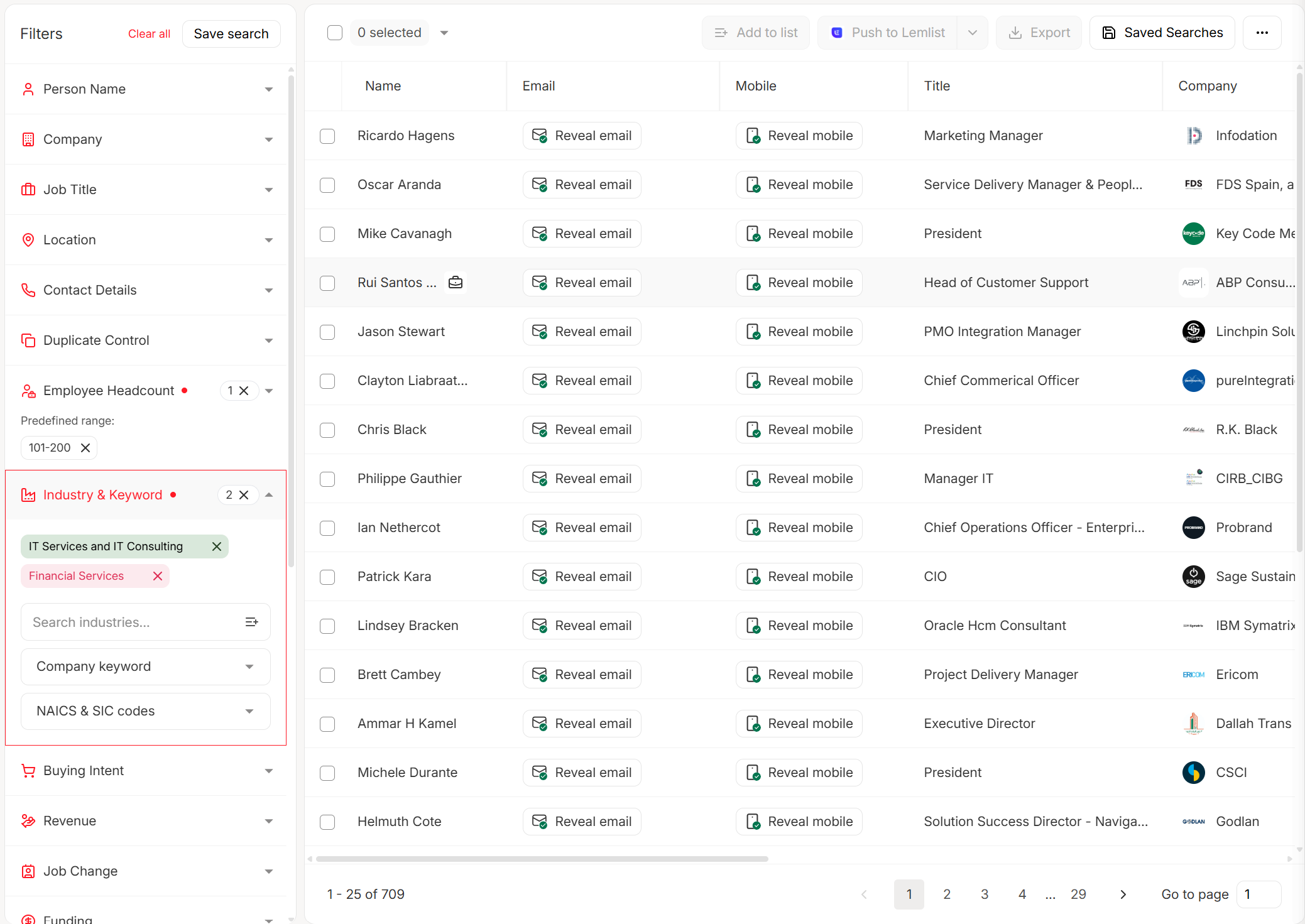
Upload a CSV, run verification, and you'll see clear statuses like Valid, Invalid, Catch-all, and Risky. Filter out anything that threatens your bounce rate, then export or push directly into your sequencer/CRM so only verified contacts enter your sending flow.
If you self-host SMTP (Postfix/Mailcow): minimum viable ops (hardening + throttling + monitoring)
If you're self-hosting, you're signing up for a production system that touches reputation networks you don't control. Treat it like that, or don't do it.
Minimum viable checklist (non-negotiables)
Identity
- PTR record required: PTR of your IP must match the host FQDN.
- FCrDNS must pass (PTR -> hostname, hostname -> same IP).
- HELO/EHLO must be a real hostname that matches your identity.
Hardening
- Lock down outbound SMTP: restrict outbound port 25 so only your mail server can send to destination port 25.
- Abuse prevention: rate limit signups, add CAPTCHA, add honeypots, and monitor for bot spikes. If bots can create accounts and trigger outbound, you'll get listed.
Monitoring
- Watch queue size, deferrals, and bounce codes by domain (Outlook vs Gmail diverges fast).
- Check blocklists and fix root cause before you request delisting.
If you're using a self-hosted cold email sending server, document your SMTP settings for cold email (auth, ports, TLS policy, envelope-from/return-path) so your sequencer, relay, and bounce processing don't drift over time.
Postfix throttling snippet (don't blast)
These knobs are simple and effective when you're acting as a relay and need to slow down:
smtp_destination_concurrency_limit=2
smtp_destination_rate_delay=1s
smtp_extra_recipient_limit=10
Mailcow (Tier 2): great suite, brutal if you don't have ops chops
Mailcow is a solid self-hosted mail suite, and the docs are clear about prerequisites like PTR/rDNS alignment. The problem isn't Mailcow. Cold email is an adversarial environment.
Skip Mailcow if you don't control rDNS at your hosting provider, can't get clean IPs, or don't have time to handle incidents. We've watched a self-host attempt aim for 1M+/month, get hammered by bot signups, then spiral into Outlook delivery failures and blocklist listings. That's the default failure mode, and it's frustrating because it's avoidable.
Pricing signal: software's free, but you'll pay $5-$50/mo for a VPS plus your time (which is the expensive part).
Postfix (Tier 2): powerful, but it won't save you from reputation
Postfix is the right tool when you need MTA-level control: throttling, queue management, transport maps, and policy enforcement.
But don't confuse "I can configure it" with "providers will accept it." Postfix can help you behave like a good citizen. It can't buy you trust.
Pricing signal: free software + $5-$50/mo infrastructure, plus meaningful ops time.
MXToolbox (Tier 2): your pre-flight and incident-response flashlight
MXToolbox is where you sanity-check DNS, MX, SPF, DKIM, and basic reputation signals before you send volume.
Use it:
- Before warmup ramp (to catch dumb DNS mistakes)
- During incidents (to confirm propagation and spot obvious listings)
Pricing signal: free checks are enough for most teams; paid monitoring typically runs ~$20-$100/mo depending on alerts and scope.
Buy vs build cost reality (with pricing you can compare)
This is the part people avoid because it forces a decision. But cost is strategy.
Blunt note: this is infrastructure-only (domains/mailboxes/infra). Inbox licenses (Google Workspace/M365) and sequencer seats are separate line items.
Comparable cost snapshot: what 50 inboxes typically costs (infra only)
- Mailforge: 50 mailbox slots on annual billing is $150/mo (50 x $3/mailbox/mo billed yearly) + domains (~$14/yr each) + optional masking.
- Maildoso (monthly SMTP plan): one common way to cover ~50 inboxes is 70 mailboxes for $158/mo.
- Self-host: a VPS is cheap ($5-$50/mo), but the real cost is ops time + reputation risk. One incident can wipe out months of warmup.
Pricing table (clean, complete)
| Path | What you pay | Typical cost |
|---|---|---|
| Mailforge | Domains | $14/yr per domain |
| Mailboxes (monthly) | $30/mo for 10 mailboxes | |
| Mailboxes (annual billing) | $3/mailbox/mo billed yearly (min 10) | |
| Masking / domain masking | $2/domain/mo or $6/domain/yr | |
| Maildoso | SMTP (30 mailboxes) | $75/mo |
| SMTP (70 mailboxes) | $158/mo | |
| SMTP (300 mailboxes) | $570/mo | |
| Domains | ~$12/yr per domain | |
| Quarterly bundles | $299/qtr (32), $499/qtr (68), $2,199/qtr (400) | |
| Self-host | VPS + ops time | $5-$50/mo + time |
Maildoso (Tier 1): buy infrastructure when you need lots of inboxes fast
Maildoso is the "I don't want to be an email admin" option. You're paying for speed, rotation, and operational guardrails.
Where it helps: scaling to dozens or hundreds of mailboxes without spending weeks on domain buying, inbox provisioning, and babysitting warmups.
Where it doesn't help: targeting, copy, complaints, and list hygiene. Infrastructure can't save a bad list.
Mailforge (Tier 1): clean provisioning + simple pricing, good for small teams scaling steadily
Mailforge is the "predictable costs, quick setup" play. If you want to scale steadily without building internal ops, it's a clean default.
One practical move: put a simple site on each domain so prospects don't feel like they're emailing a ghost brand. If you want, add a 301 redirect for human trust. Just don't confuse that with deliverability.
Launch checklist + troubleshooting matrix
If you want a printable go/no-go, this is it.
Launch checklist (print this)
Domain & inboxes
- Alternate domains live + simple site (optional 301 redirect to main site)
- 2-3 inboxes/domain created
- Warmup running 2-4 weeks
- Keep warmup running at low volume even after campaigns start (maintenance matters)
Authentication
- SPF: single record, under 10 lookups (deep dive: SPF record)
- DKIM: pass
- DMARC:
p=noneminimum, alignment confirmed
Identity & compliance
- PTR set (only if you control the sending IP)
- FCrDNS passes (PTR <-> A/AAAA)
- HELO/EHLO matches hostname (self-host/infra)
- TLS enabled
- One-click unsubscribe working (headers + body)
- Unsub SLA: processed within 48h
- If you're on Google/Microsoft inboxes: PTR is handled by the provider, so focus on alignment, unsubscribe, and behavior
Behavior
- Ramp slowly to 40-50/day/inbox
- Open tracking off
- Bounce rate <2%
- Complaint rate <0.3% (best <0.1%)
Troubleshooting matrix (symptom -> likely cause -> fix)
| Symptom | Likely cause | Fix |
|---|---|---|
| SPF/DKIM pass but Outlook blocks | DMARC alignment + identity gaps | 1) Check DMARC alignment (From vs DKIM d= and Return-Path) 2) Confirm FCrDNS (if you control IP) 3) Ensure List-Unsubscribe headers are present |
| Outlook error 550 5.7.515 | Auth level not met at volume | Ensure SPF+DKIM pass and DMARC is at least p=none with alignment |
| NDR 550 5.7.233 | M365 TERRL hit | Reduce external recipients/day, slow ramp, or change architecture |
| Sudden spam placement | Complaints + tracking signals | Turn off open tracking, remove extra links/redirects, slow volume |
| Blocklist listing | HELO/rDNS/abuse | Stop sending, fix identity/abuse vector, request delisting |
Spamhaus incident basics
- Stop sending immediately.
- Fix HELO/rDNS and the abuse vector.
- Request delisting. Once approved, removal's immediate, but propagation can lag up to 24 hours.
Where we land (decisive defaults)
Default to an inbox-based stack until you hit real limits. Move to an infra provider when you need dozens/hundreds of inboxes without hiring deliverability ops. Self-host only when you can run email like production infrastructure, because that's what it becomes the moment you send volume.
If you take nothing else: cold email server setup is less about "perfect DNS" and more about identity + compliance + behavior, then protecting your reputation with verified lists and sane volume.
Bounces above 2% will crater the domains you just warmed for a month. Prospeo verifies every email through catch-all handling, spam-trap removal, and honeypot filtering - refreshed every 7 days, not 6 weeks. 15,000+ teams trust it to keep their cold email infrastructure clean.
Stop guessing which emails are valid. Verify before you send.
FAQ
Do I need a private SMTP server for cold email?
No. Most teams should use inbox-based sending (Google Workspace or Microsoft 365) because it's faster, safer, and easier to keep compliant. Private SMTP is only worth it if you can run monitoring, throttling, abuse prevention, and rDNS/HELO identity like production infrastructure, and you truly need dedicated SMTP control.
Why is Outlook blocking my cold emails even though SPF/DKIM/DMARC pass?
Outlook blocks usually come from alignment and identity gaps: the visible From domain doesn't align with DKIM d= and/or the Return-Path domain, List-Unsubscribe headers are missing, or (if you control the IP) PTR/FCrDNS is broken. The telltale error is 550 5.7.515. Fix alignment first, then verify FCrDNS and unsubscribe headers.
What are Microsoft 365 TERRL limits and what do 550 5.7.232/233 mean?
TERRL is Microsoft 365's tenant-level cap on external recipients/day in a 24-hour sliding window. If you exceed it, outbound gets blocked with NDR 550 5.7.232 (trial tenants) or 550 5.7.233 (non-trial). Reduce external recipient volume, slow your ramp, or change architecture.
What bounce rate is "safe" for cold email, and how do I reduce it?
A safe bounce rate for cold email is under 2% because higher bounce rates trigger provider enforcement and reputation damage. Reduce it by verifying addresses before ramp, filtering risky/catch-all emails, and refreshing data frequently.